Quick counting with “Search Shape”
The "Count" function is great, and manual clicking is a headache.
Don't be afraid, the new function "Search Shape" can automatically search the same or similar graphics on the drawing and complete the counting with one click!
Let's see the detailed tutorial:
1. First of all, make sure your computer has installed PlanForm, if not yet installed, please download the installation package from the official website and install it.
Official website: https://pdf.fastcadreader.com/
2. Open a drawing in PDF format that contains duplicate shapes that need to be counted.
3. Zoom in on the drawing to find the shape that needs to be searched for counting.
(Tip: Try to find the shape with the least amount of interference for more accurate search)
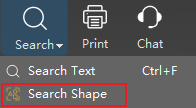
4. Click on the “Search Shape” button under "Search". Box the shape to be searched. Pay attention to try not to box the redundant elements. (Redundant elements will affect the accuracy of the search)
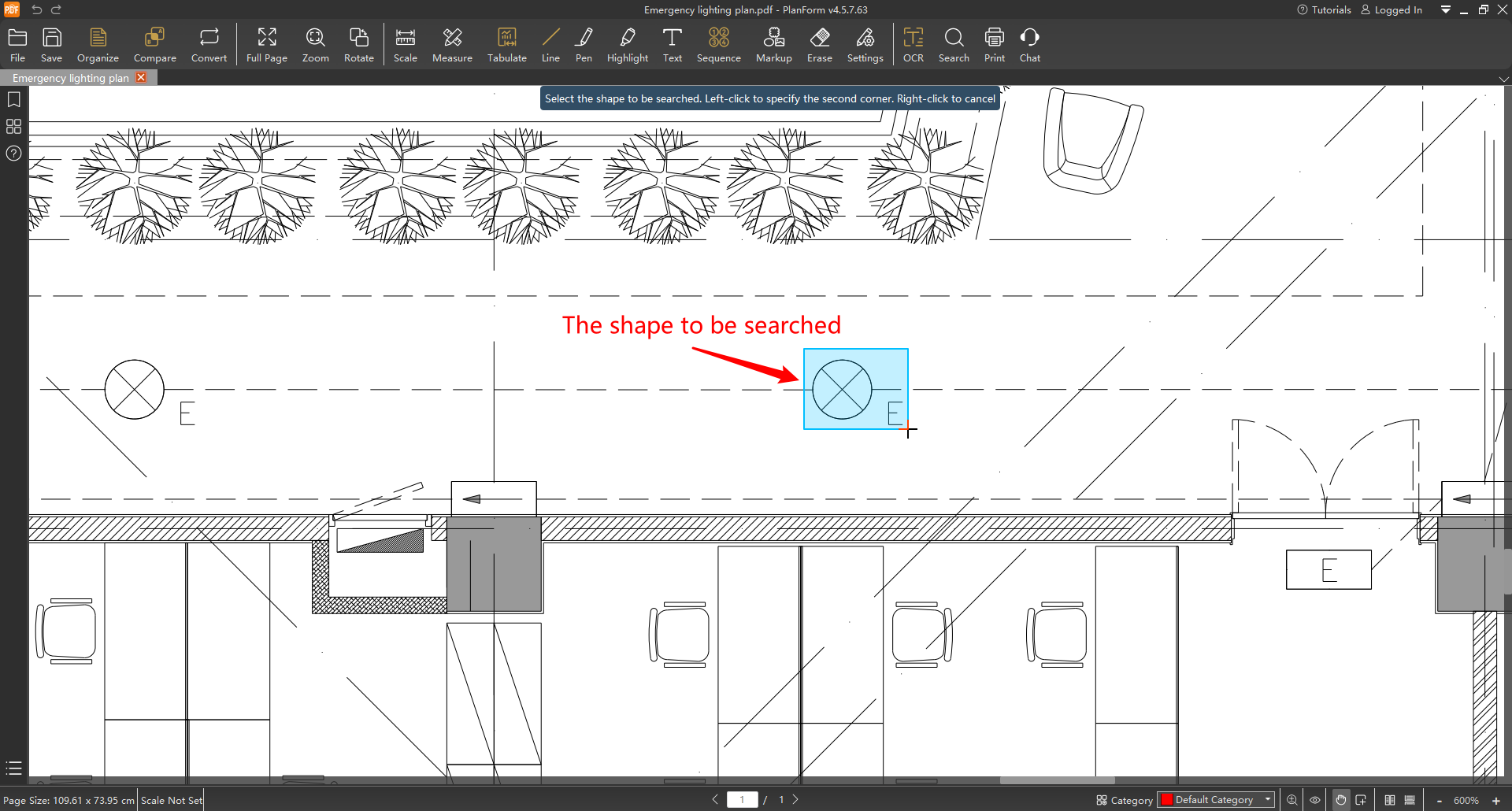
5. In the “Search Shape” pop-up window, check the shape. If the shape is incomplete or contains redundant elements, you can click on “Reselect” to box the shape again.
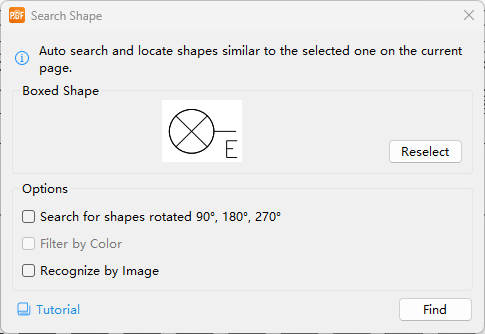
6. After confirming that the shape is correct, according to the drawings, determine whether you need to check the "Search for shapes rotated 90°, 180°, 270°", "Filter by Color" and "Recognize by Image".
Attention:
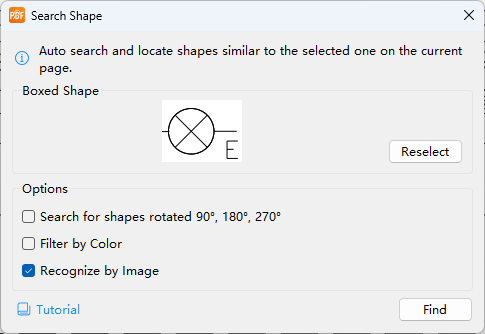
a) If your PDF is vector-based, when "Recognize by Image" is not checked by default, the box selection preview will display the complete lines within the selected area, and recognition will be performed based on these lines. We highly recommend using this method for vector PDFs, as it offers higher recognition accuracy.
b) When "Recognize by Image" is checked, the selection preview will display all the lines within the selected area and perform recognition based on them. You can compare the image below with the one above to observe the changes when "Recognize by Image" is checked.
c) If your PDF is scanned or generated from images, the "Recognize by Image" option will be checked by default and cannot be disabled—meaning recognition must be performed as an image.
d) If you need to recognize shapes of specific colors, you must first check "Recognize by Image" and then check "Recognize by Color".
7. Click the “Find” button and wait for a moment. The results are displayed below the “Search Shape” pop-up window. The results are categorized into 3 groups according to their similarity.
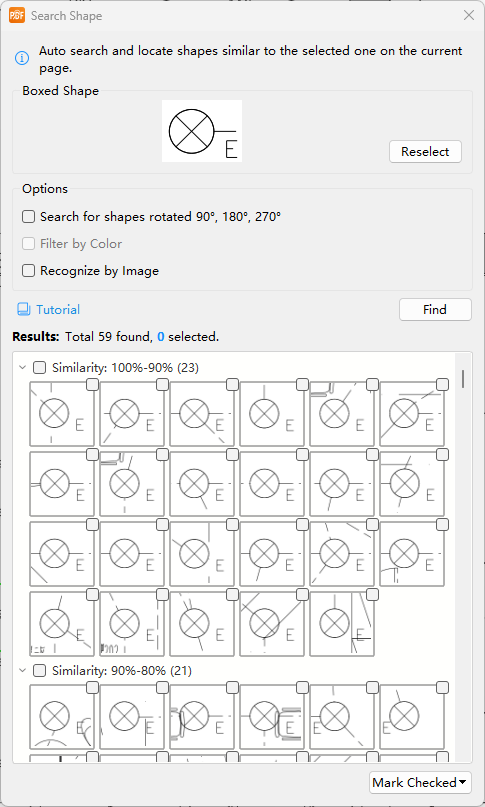
Attention:
a) Drawings with large pages may require longer search time.
b) Check the “Search for shapes rotated 90°, 180°, 270°” search time is 4 times longer than without checking the option.
8. Clicking on an individual result in the “Search Shape” window displays the result highlighted in blue on the right, making it easy to check and verify the result.
9. Check the correct search results one by one, or you can click the Select All button in front of the group to check all the results at once. Additionally, you can hold down the Ctrl or Shift key on your keyboard to make discontinuous or continuous selections, then right-click and choose "Check the selected shapes" to check the shapes.
(Checked search results are marked on the drawing with a red box, unchecked search results are marked on the drawing with a green box. )
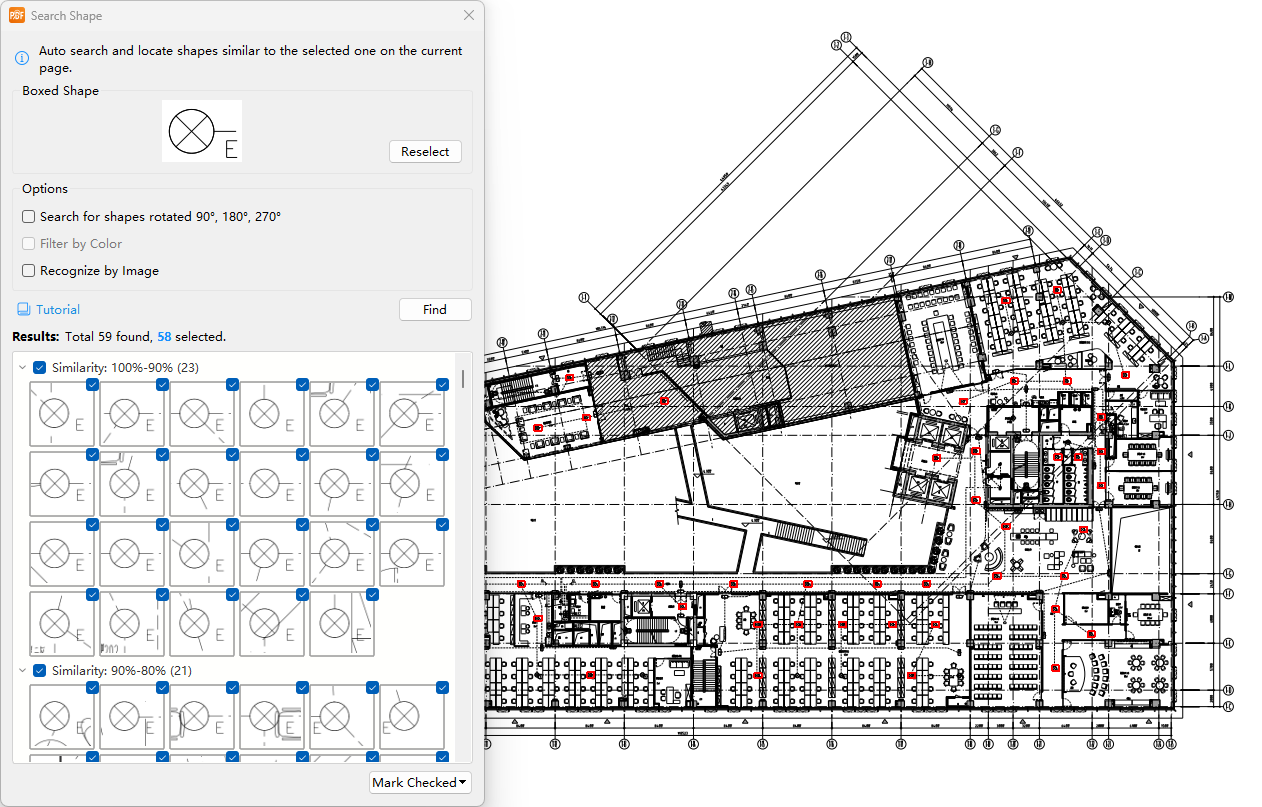
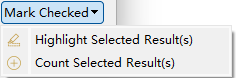
10. After checking off all the search results, click on the “Mark Checked” button. And two buttons labeled "Highlight Selected Result(s)" and "Count Selected Result(s)" will appear below. Please click based on the Comment you need to perform. (If you are conducting quantity measurement, be sure to click "Count Selected Result(s)".)
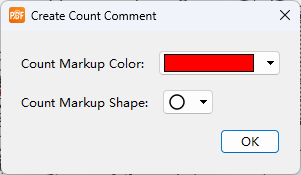
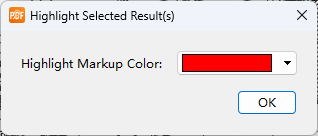
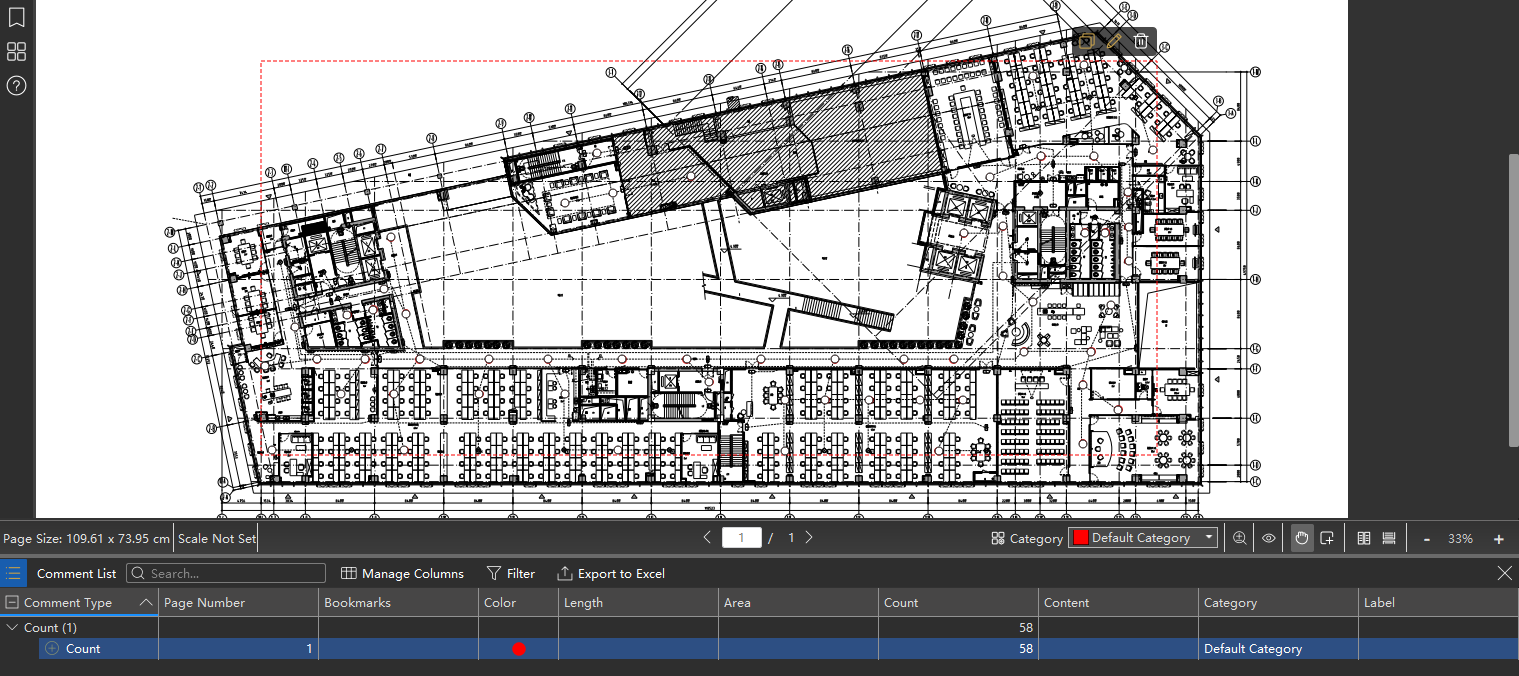
11. Configure the settings based on the options in the pop-up window. Then click the “OK” button to creat counting symbols or rectangle highlight on all checked search results.
12. You can see the comment you just made in the comment list.
Notes:
(1) When boxing the shape to be searched, try to choose shape with no or fewer interfering elements to improve the accuracy of search.
(2) At present, it only supports searching the same or similar shapes on the current page, and does not support cross-page searching.
(3) For vector PDF drawings, whether or not to check "Recognize by Image" makes a difference. Since leaving it unchecked reduces interfering factors in recognition, we generally recommend keeping it unchecked. However, if unchecking it causes the preview of the selected area to lack essential graphic elements, you should check "Recognize by Image".
(4) For scanned PDFs or image-generated PDFs, the "Recognize by Image" option will be checked by default and cannot be disabled—meaning recognition must be performed as an image.
(5) If "Filter by Color" is unchecked, the search of shapes does not distinguish between colors, and shapes with the same shape and different colors will be judged as similar shapes. If the shapes you need to search are colored, it is recommended to check "Filter by Color" to improve the accuracy rate.
(6) If your PDF is vector-based and you need to recognize shapes of specific colors, you must first check "Recognize by Image" and then check "Recognize by Color".
(7) For rotated shapes, only shapes that have been rotated by 90°, 180° and 270° are supported, while other angles are not supported for the time being.
(8) If the content of the shapes to be recognized is complex, it leads to a large number of false positives. It is recommended that you re-box the unique shape inside the whole shape to be searched to improve the search accuracy.
(9) In the Search Shape results to check the correct search results, you can use the full selection and inverse selection to improve the efficiency of checking.
(10) Search Shape results can only be saved as count or highlight markup, does not support saving search results.
(11) For the results of missed search of the Search Shape, you can click on the count markup, right-click on any single count markup, and then click on the “Continue Counting” to continue to add count markup in the original count markup.

Still have questions? Feel free to contact our technical support via Email, WhatsApp or WeChat. We provide 1-to-1 services for free!
- Email: planformservice@gmail.com
- WhatsApp: Scan the QR code below

- LINE: Scan the QR code below

Don't forget to follow our social media pages to learn more tips and tutorials!
- YouTube: https://www.youtube.com/@cadreader
- TikTok: https://www.tiktok.com/@officialcadreader
- LinkedIn: https://www.linkedin.com/company/cadreader/
- Website: https://pdf.fastcadreader.com/

Back to the list of all tutorials: https://club.fastcadreader.com/question/list/11/planform-for-windows