Measuring Lateral Areas for Complex Shapes
Calculating Lateral Surface Areas for Octagons in CAD Reader for Formwork and External Coating
On construction sites, personnel frequently encounter non-standard structural elements and foundations such as hexagonal or octagonal shapes, requiring rapid material takeoffs. Calculating quantities manually section by section using a calculator for items like formwork, waterproofing, and exterior coatings is time-consuming and prone to human error.
To overcome this, CAD Reader (Mobile Version) offers a streamlined, on-the-go solution for direct lateral area measurement from your mobile device.
Step-by-Step Guide
- Ensure your CAD Reader app is updated to version 3.9.0 or later.
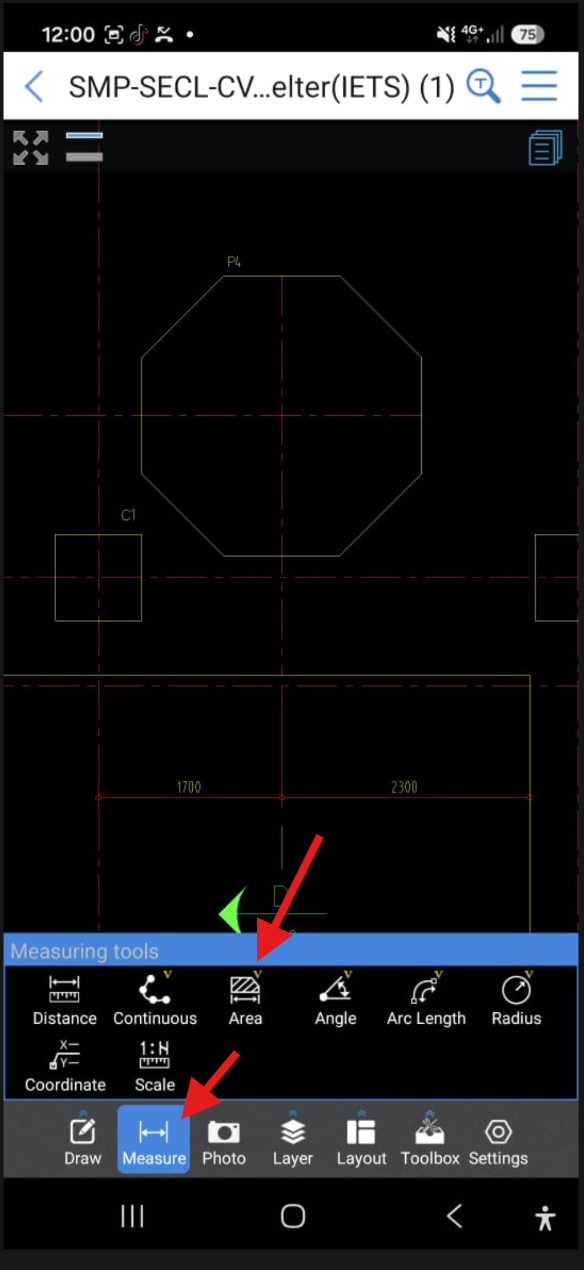
- Once the drawing units are set, open the measurement toolbar and select the Area tool.
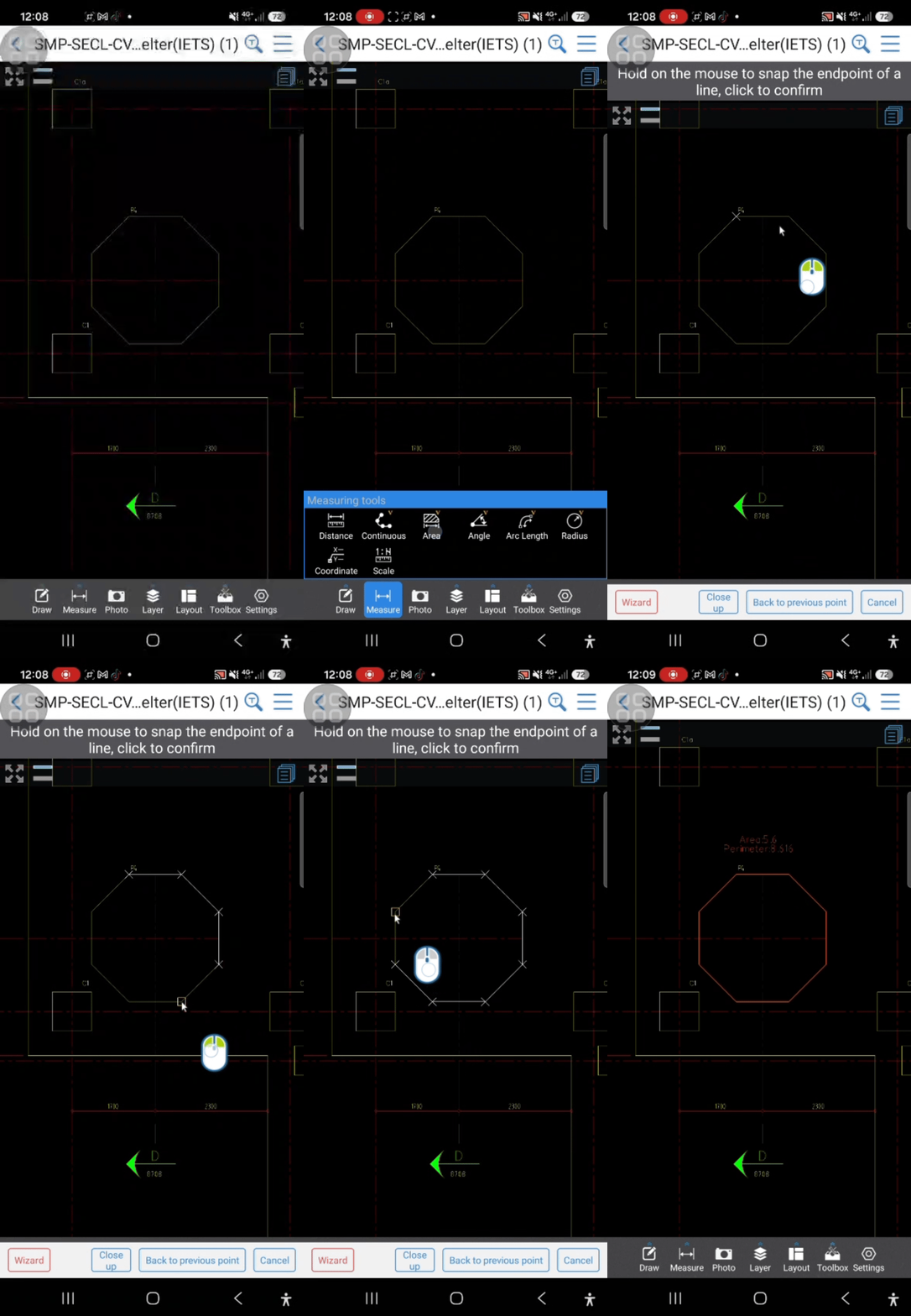
- Tap all 8 corner points of an octagonal shape and tap Close Up to complete the loop.
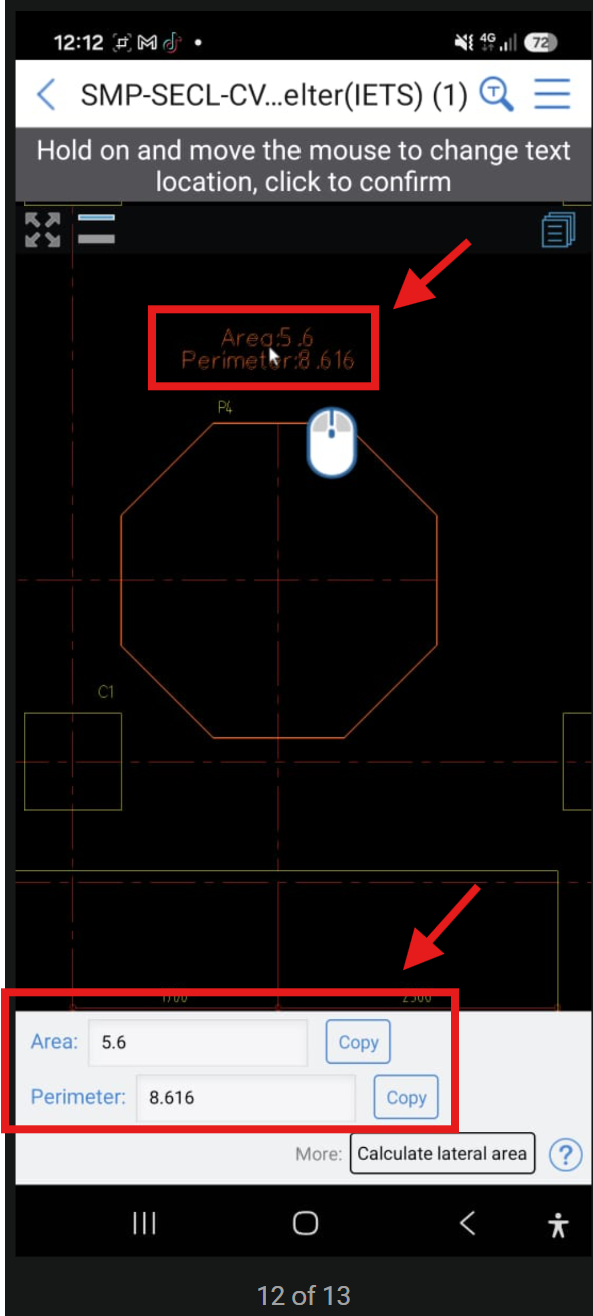
- The software will instantly calculate and display the base area and perimeter.
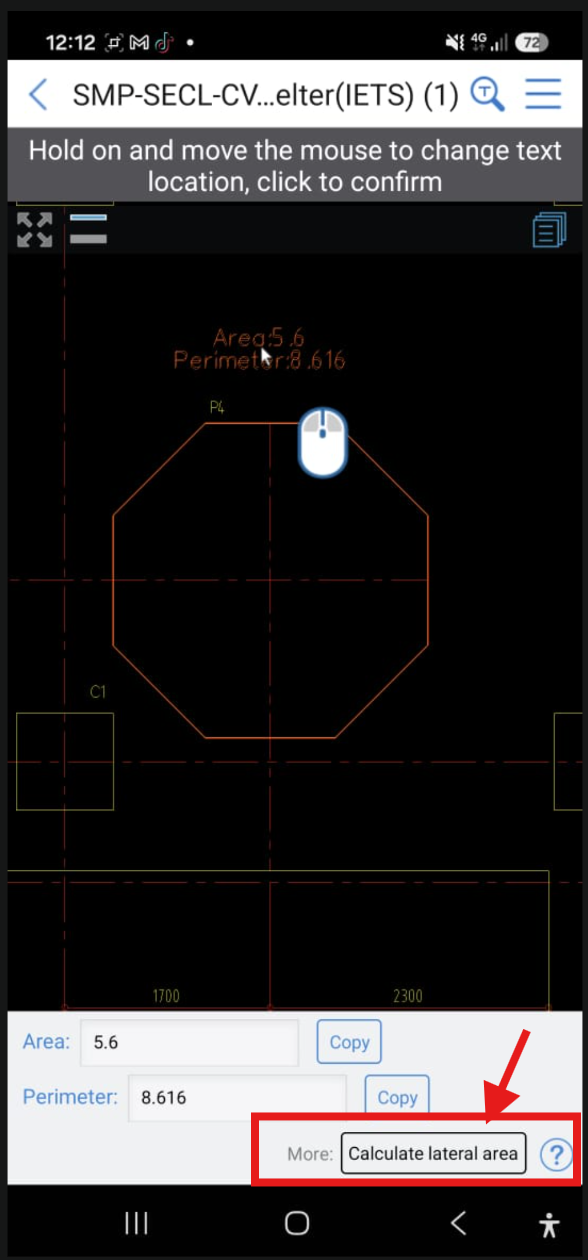
- Tap Calculate Lateral Area to begin measuring the side surface area.
- Enter the designated height of the structure.
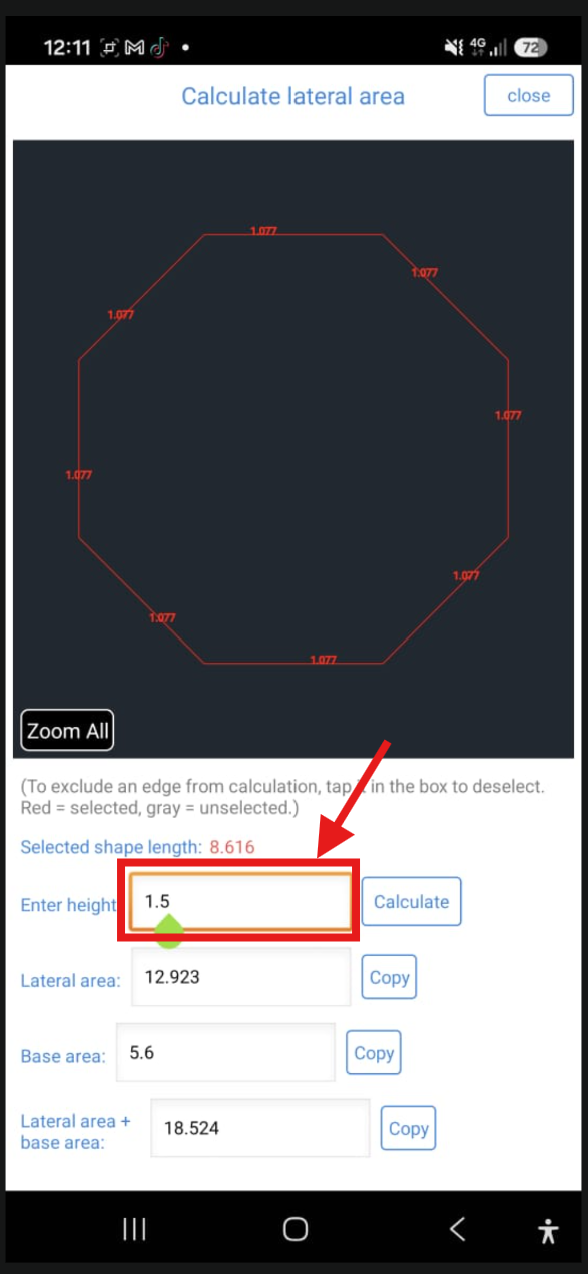
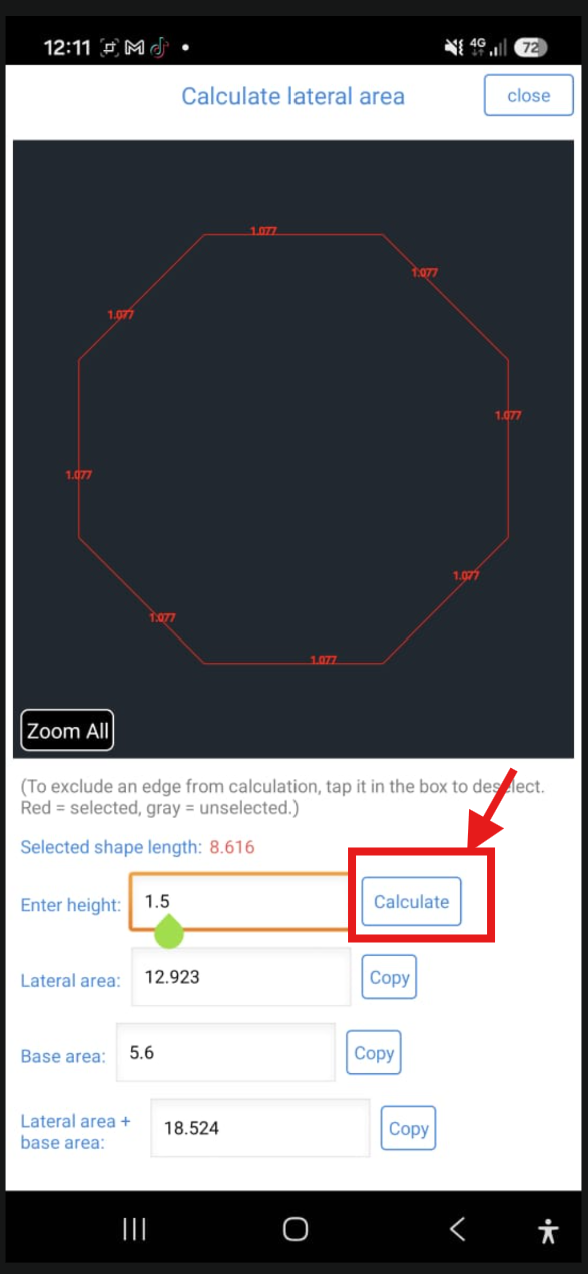
- Tap Calculate to output the combined lateral and base areas.
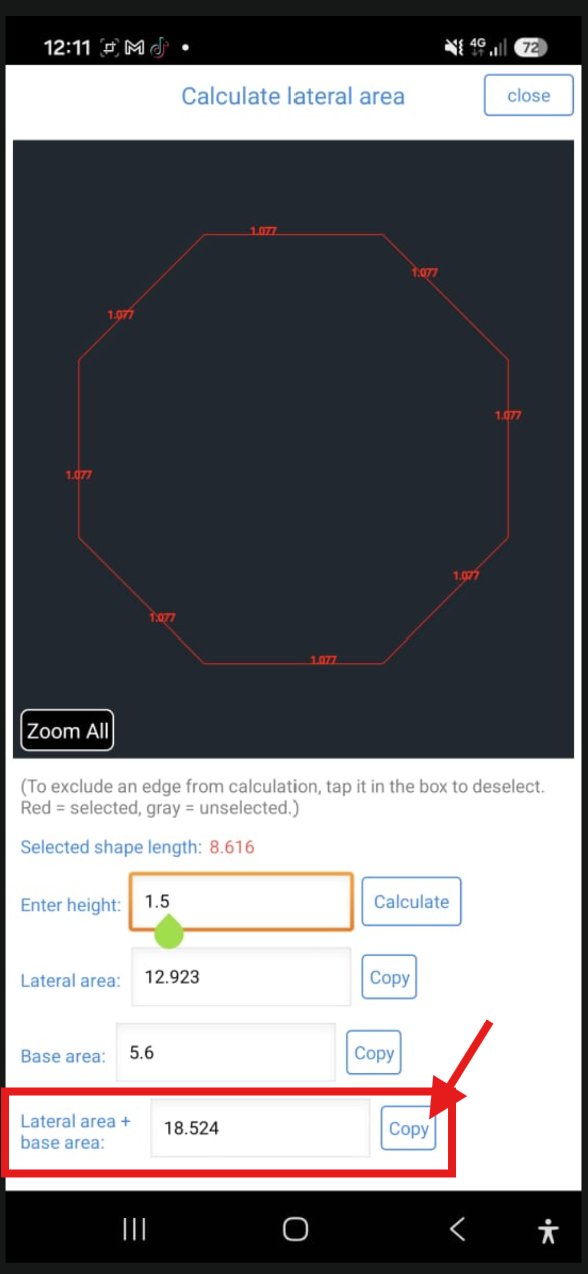
- To record your figures, tap the Copy icon next to the value, then use the text annotation tool to stamp it directly onto the drawing or paste it into external documentation.
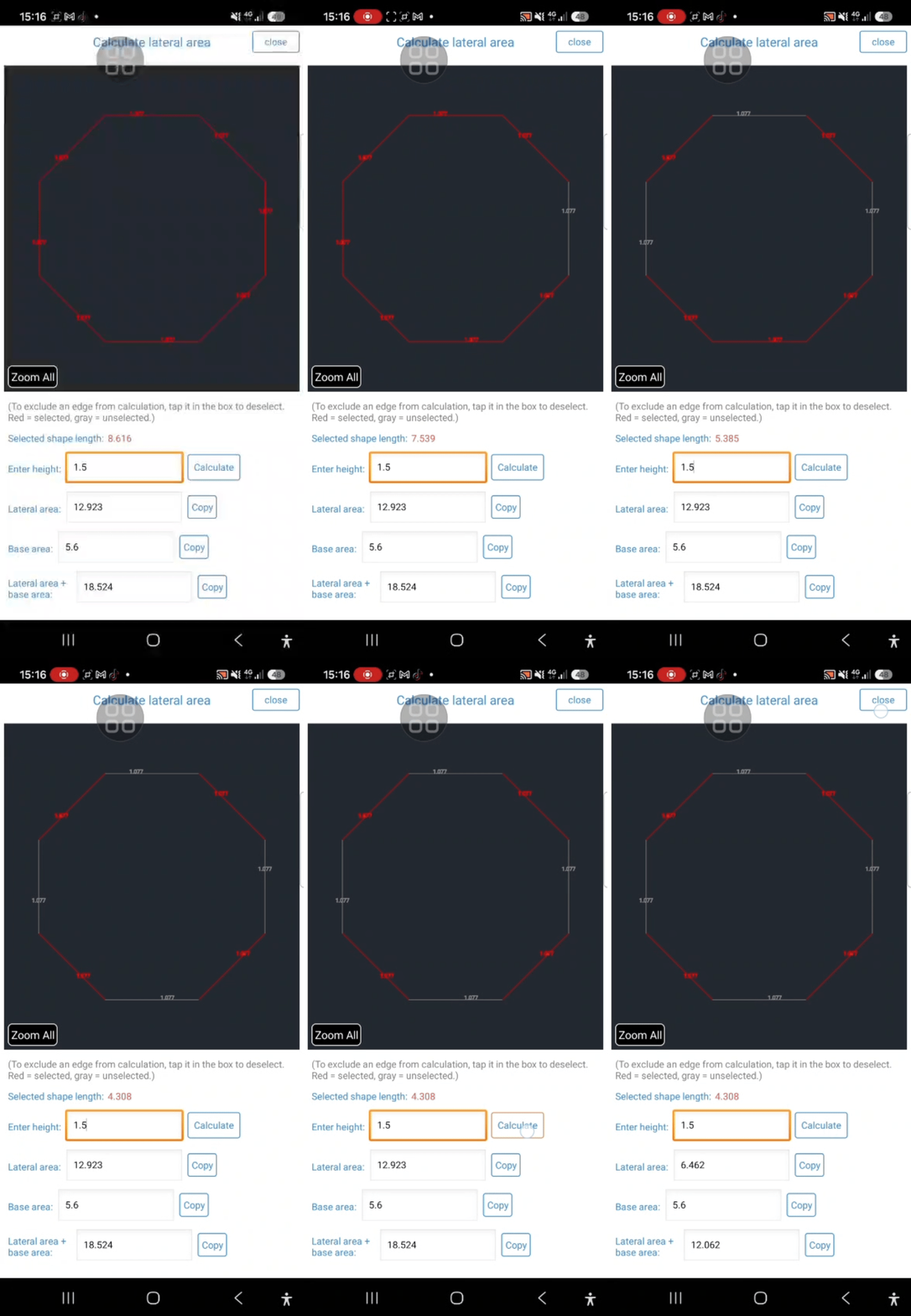
- If certain surface do not require formwork or finishing, simply tap to deselect specific lines within the calculation menu, and the system will automatically adjust the lateral area accordingly.
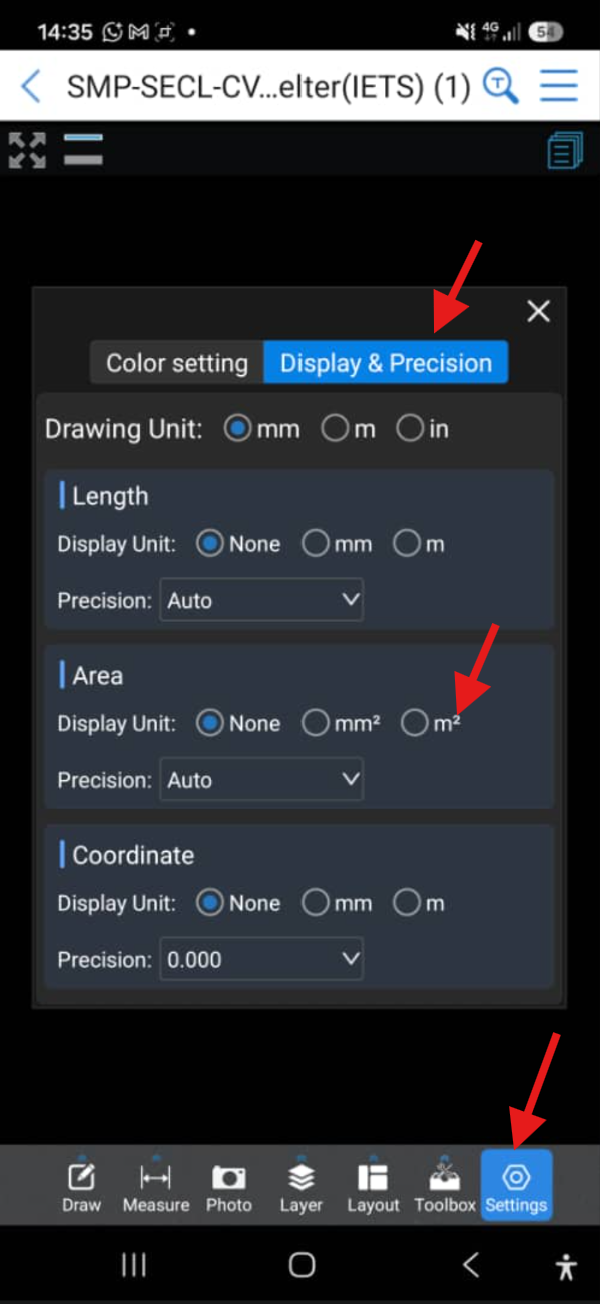
- If your drawing is currently in millimeters and you wish to convert it to meters, follow the CAD Reader Unit Conversion Guide.
- Alternatively, navigate to Settings > Display & Precision to adjust your display units directly.

0 answers