Planform now introduces its latest feature: Batch Compare
How does Batch Compare help? In construction projects, architectural, civil, structural, and MEP drawings often undergo numerous revisions as new ideas and proposals emerge after the design stage. While some changes are easy to spot, others can be difficult especially when drafters overlook clouding or revision triangles.
With Batch Compare, Planform empowers users to:
- Compare multiple drawing revisions simultaneously
- Spot changes instantly, even without revision marks
- Save time and reduce errors during review cycles
This feature enabling users to quickly identify changes across multiple drawing revisions in just seconds. This helps to ensures that project teams can stay on top of revisions efficiently, maintaining accuracy and productivity across disciplines.
Step-by-step guide:
- Ensure you have updated to the latest Planform revision v5.2.6.113 from the official website.
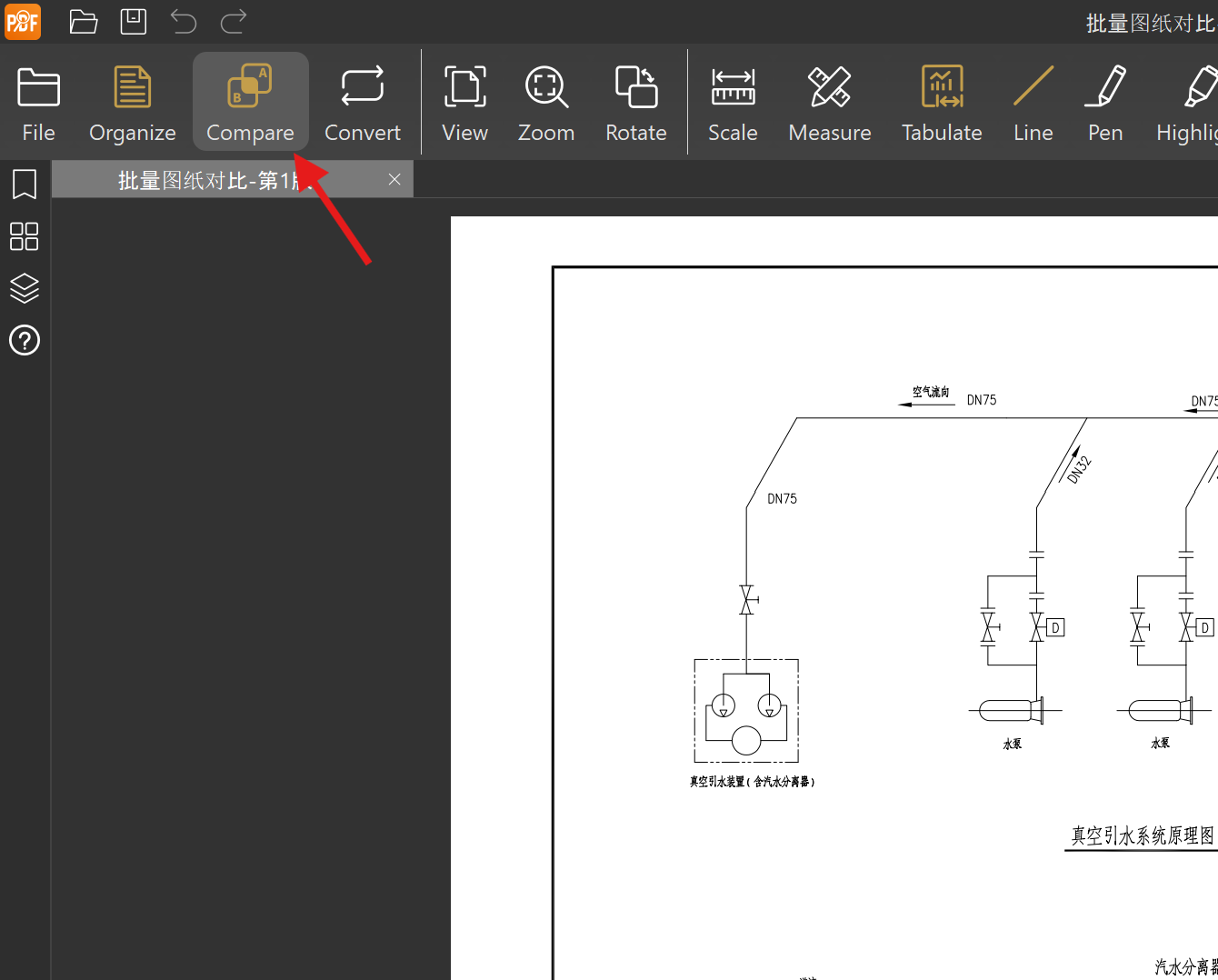
- Navigate to the “Compare” feature on the toolbar.
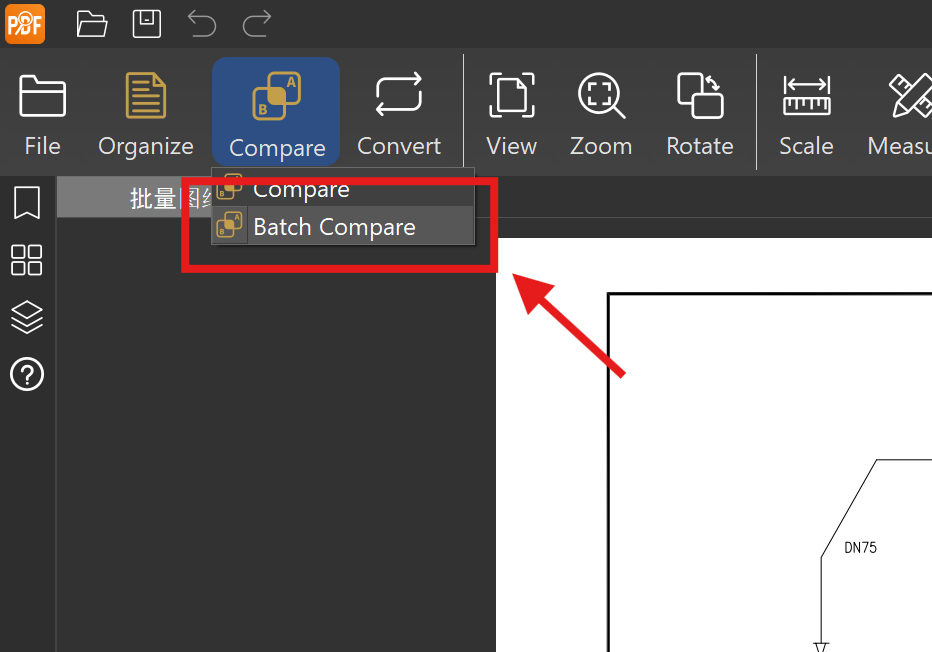
- Select “Batch Compare” from the drop-down list.
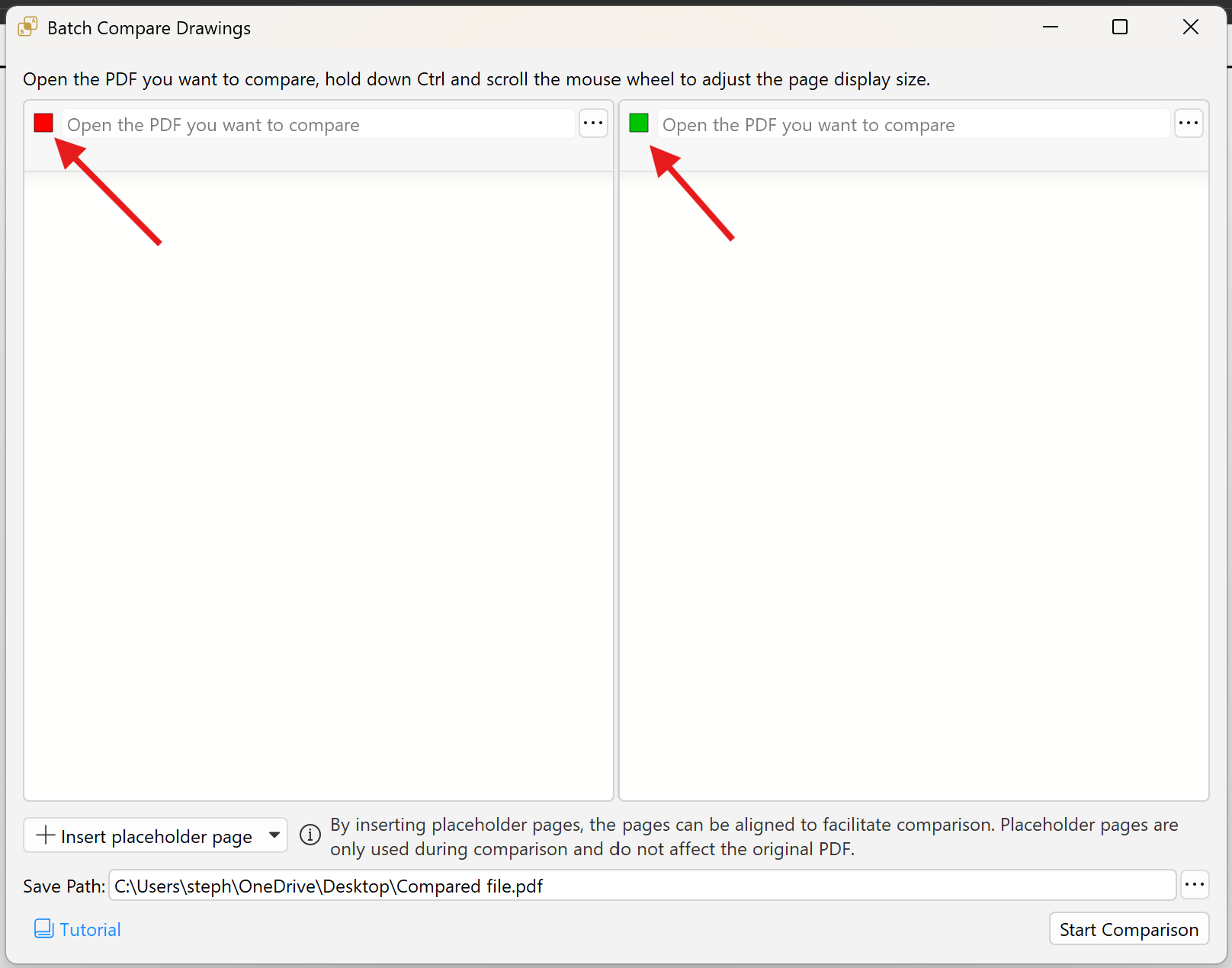
- Press the “…” to open the PDF drawings you want to compare on both sides of the panel.
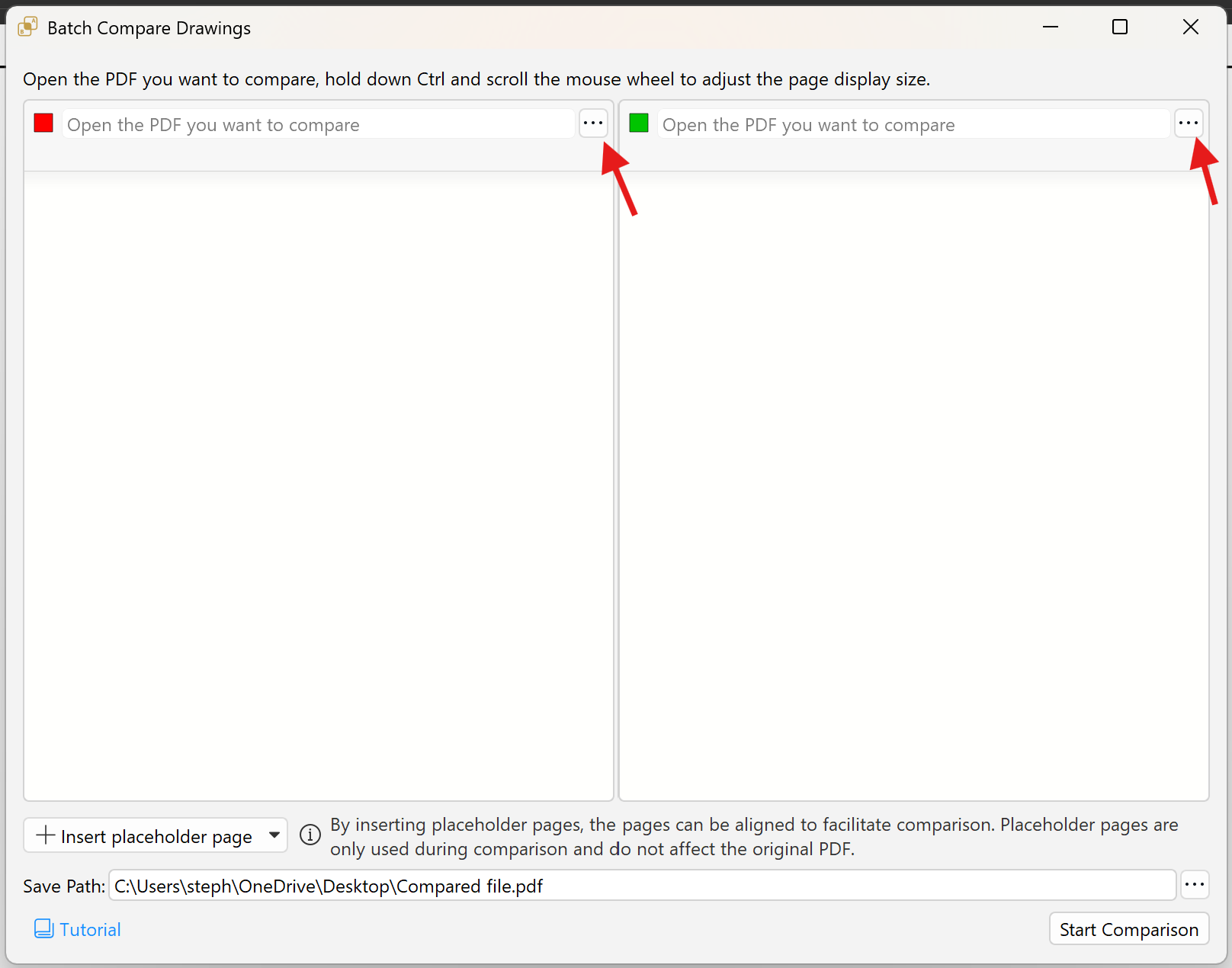
- Set different drawing colors according to your preference to distinguish revisions. Changes will be highlighted in color, while unchanged items will appear in grey.
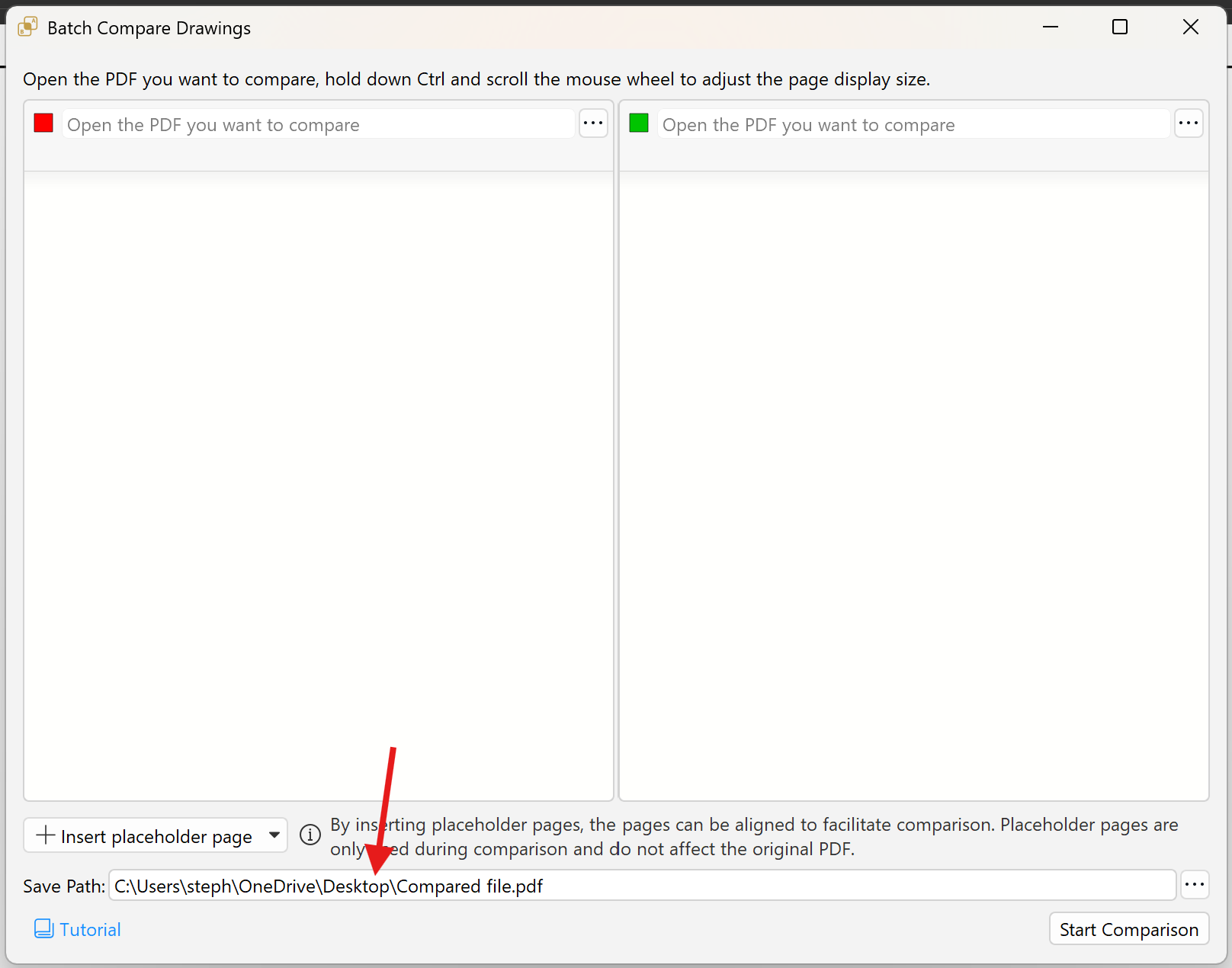
- Choose the save path for the compared file. The output will be saved as a new file without altering the original drawings.
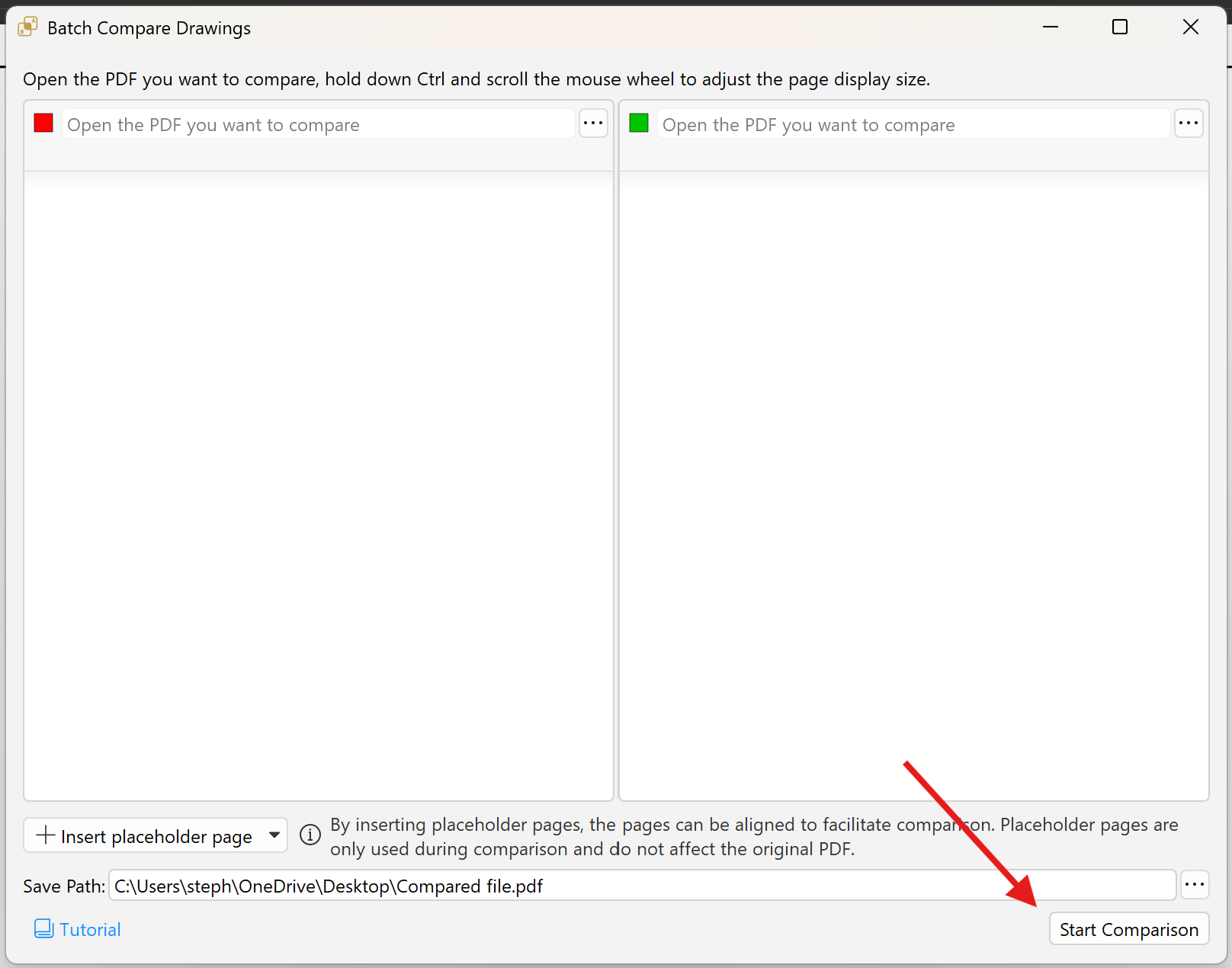
- Click “Start Comparison” to run the process. Differences will be highlighted, and unchanged entities will remain grey.
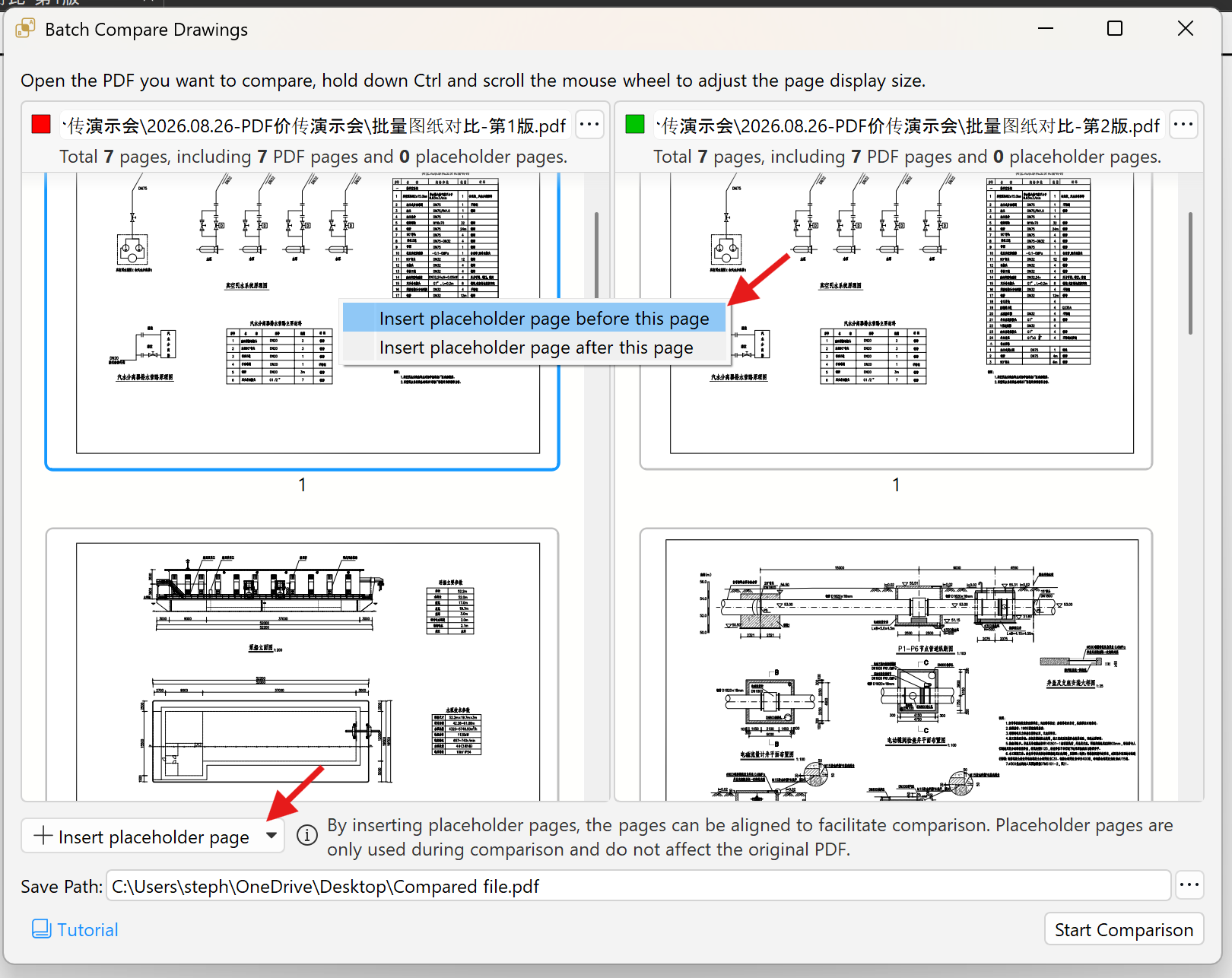
- The comparison will align drawings side by side according to page order.
- If the sheet order differs, right-click within the panel or use “Insert Placeholder Page” to add blank pages before or after the selected sheet to adjust the sequence.
- If the drawing sheets are completely out of sequence, rearrange the page order in one of the revision files. The output will be saved as a new file without altering the original drawings.
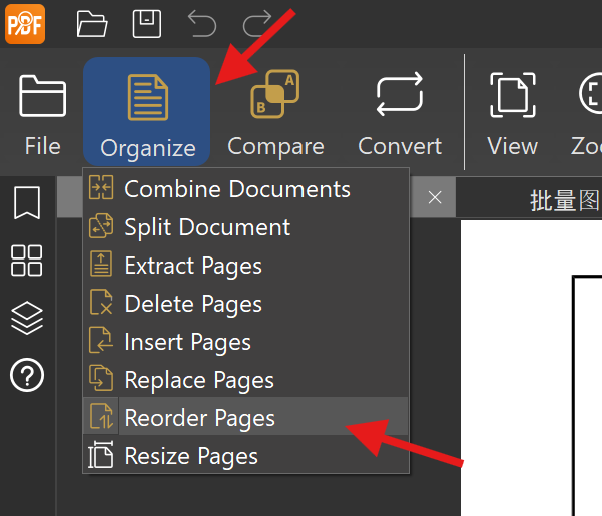
- Navigate to the “Organize” feature on the toolbar. Select “Reorder Pages” from the drop-down list.
- Select page thumbnails (use Shift for consecutive pages or Ctrl for non-consecutive pages), then drag them to the desired position to reorder.
- Repeat steps 2 to 7 to batch compare the drawings again after rearranging them in the correct order.
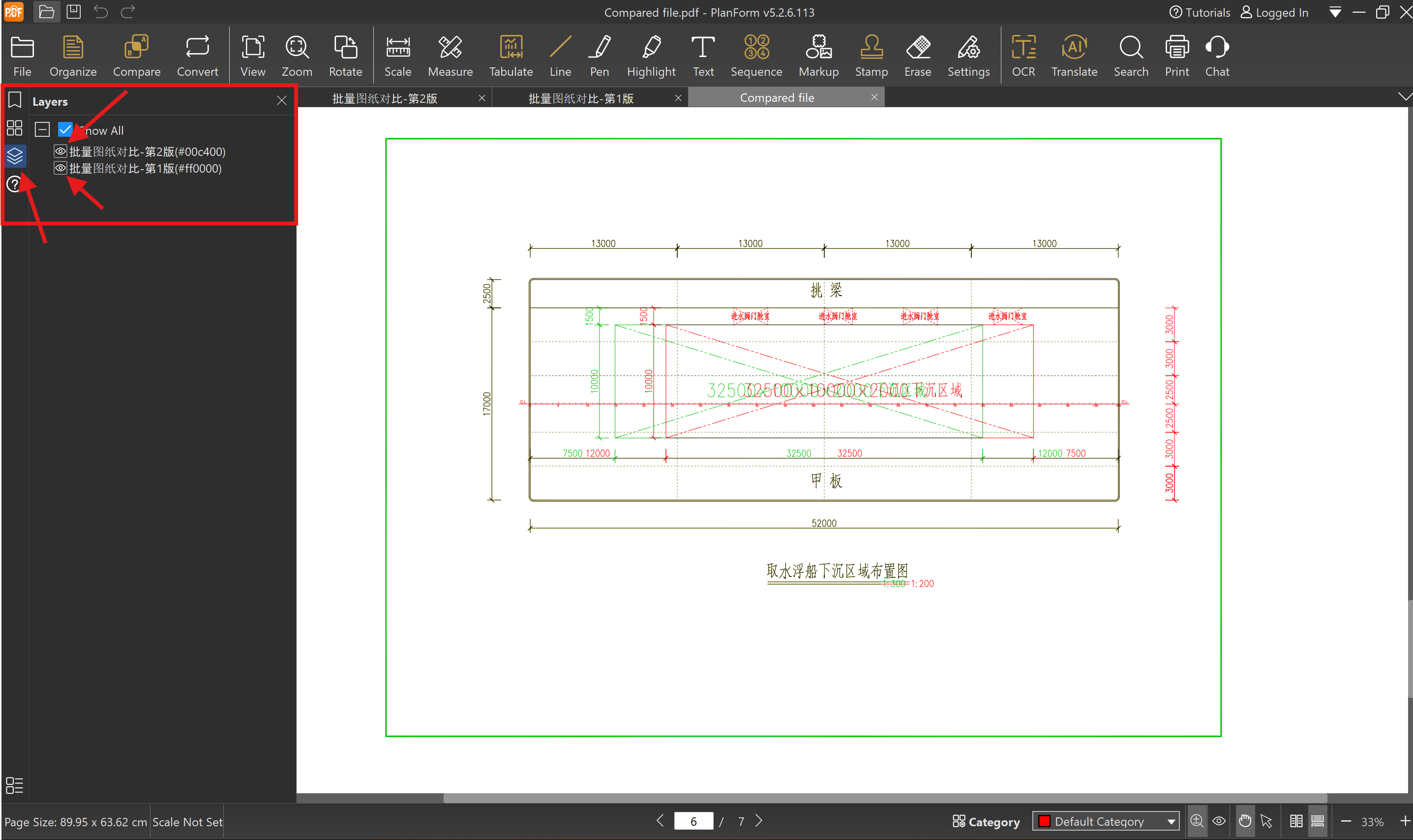
- The red highlight indicates items that exist only in revision 1, while the green highlight indicates items that exist only in revision 2.
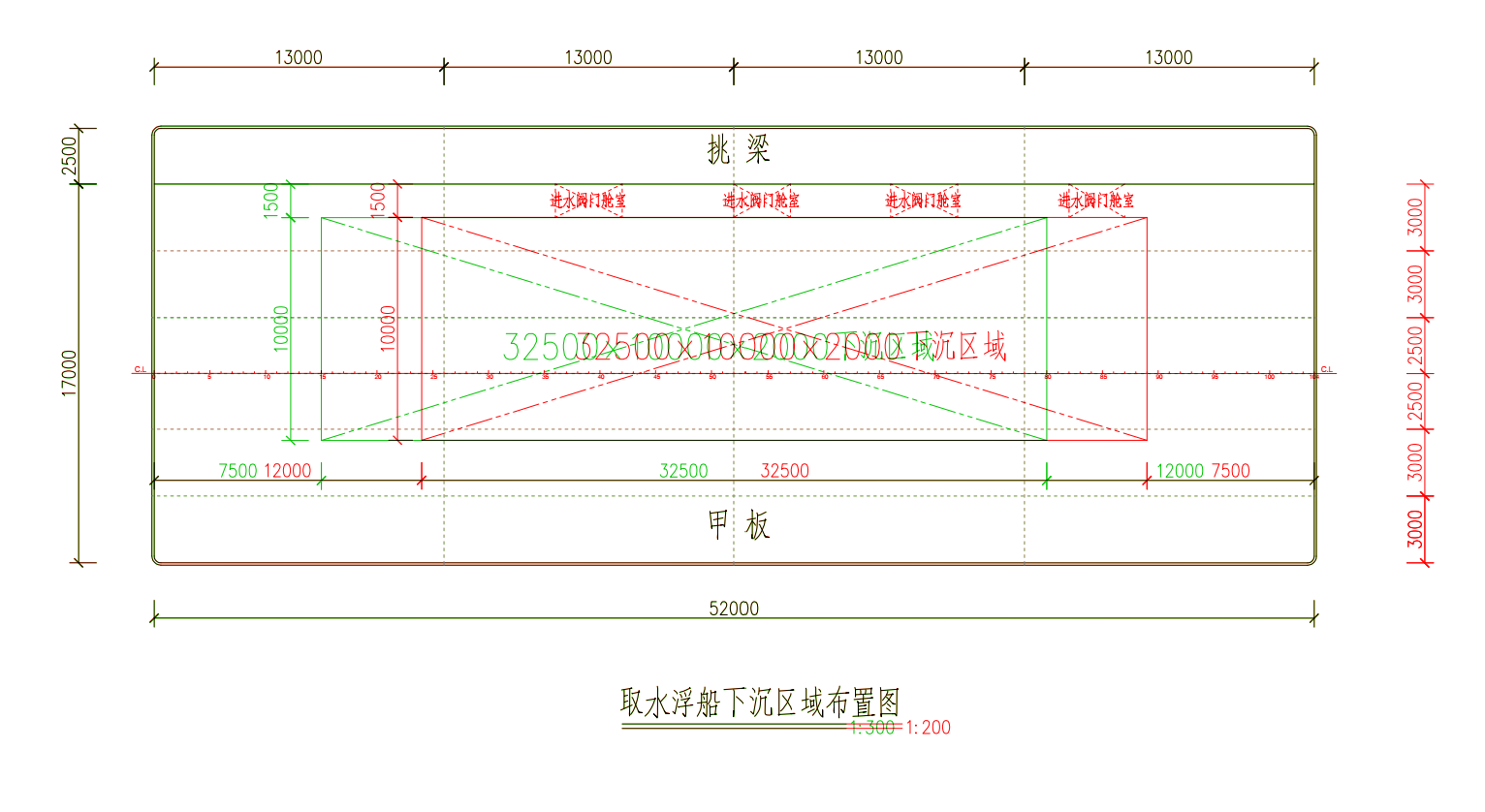
- Users can also turn on or off either one of the revision sheets in the Layers navigation panel on the left side of the screen to clearly read and confirm the drawing changes in between(Click on the eye icon).