How to calculate the area of formwork on 2D layout plan?
In construction project tendering, quantity surveyors often need to calculate the formwork area required for a project. Throughout the project lifecycle, both engineers and quantity surveyors must also verify progress and validate claims for the quantity of work completed on site. Traditionally, calculating formwork area involves measuring the side surfaces from 2D layout plans, a process that is often done manually and can be time-consuming.
To address this challenge, CAD Reader now introduces a Side Area Calculation feature. This tool enables engineers and cost estimators to quickly and accurately identify the surface area of formwork directly within the drawing. Beyond formwork, the feature can also be applied to calculate wall painting areas, making it a versatile solution for multiple construction tasks
Step-by-step guide
1. Open the drawing in CAD Reader.
2. Click on the “Measure” tool from the toolbar.
3. From the drop down menu, select either ‘Polygon Area’ or ‘Rectangular Area’ depending on the shape you want to measure.
4. Mark the perimeter of the formwork area you wish to calculate.
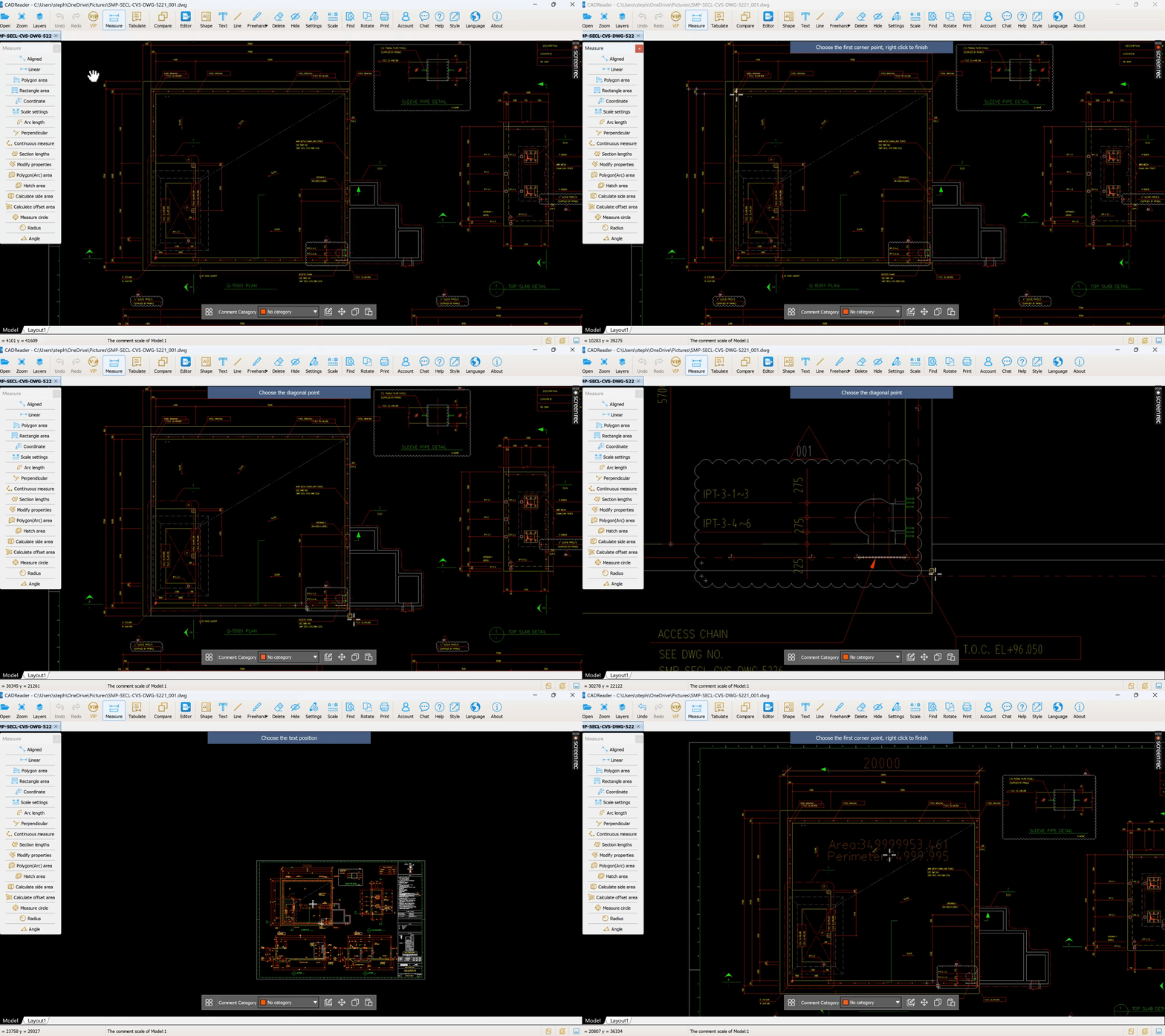
5. Complete the area markup before proceeding to side area calculation.
6. From the drop down menu, select the “Calculate Side Area” tool.
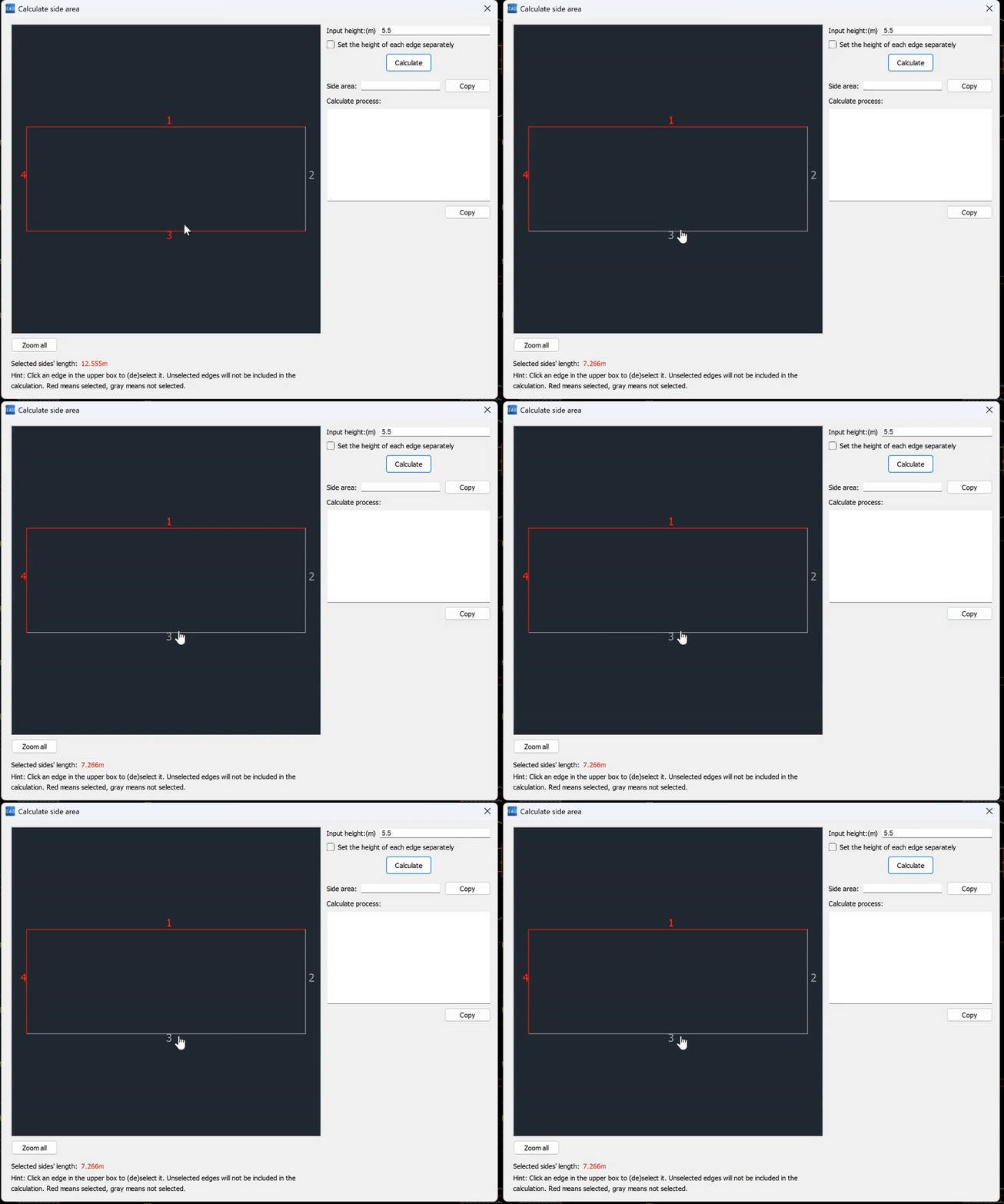
7. Left click on the area markup; a pop up window for side area calculation will appear.
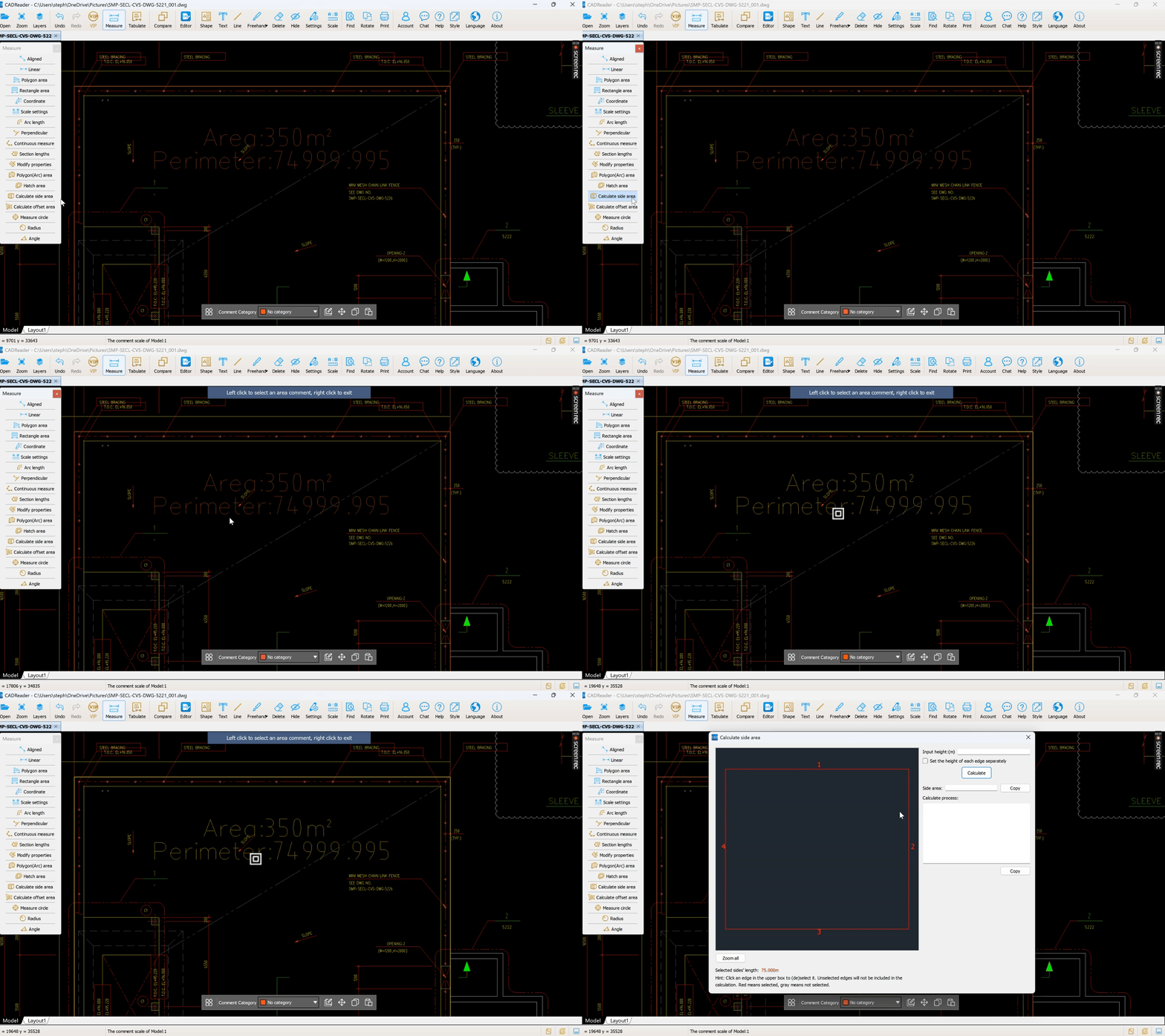
8. Enter the formwork height and click Calculate to obtain the side area result.
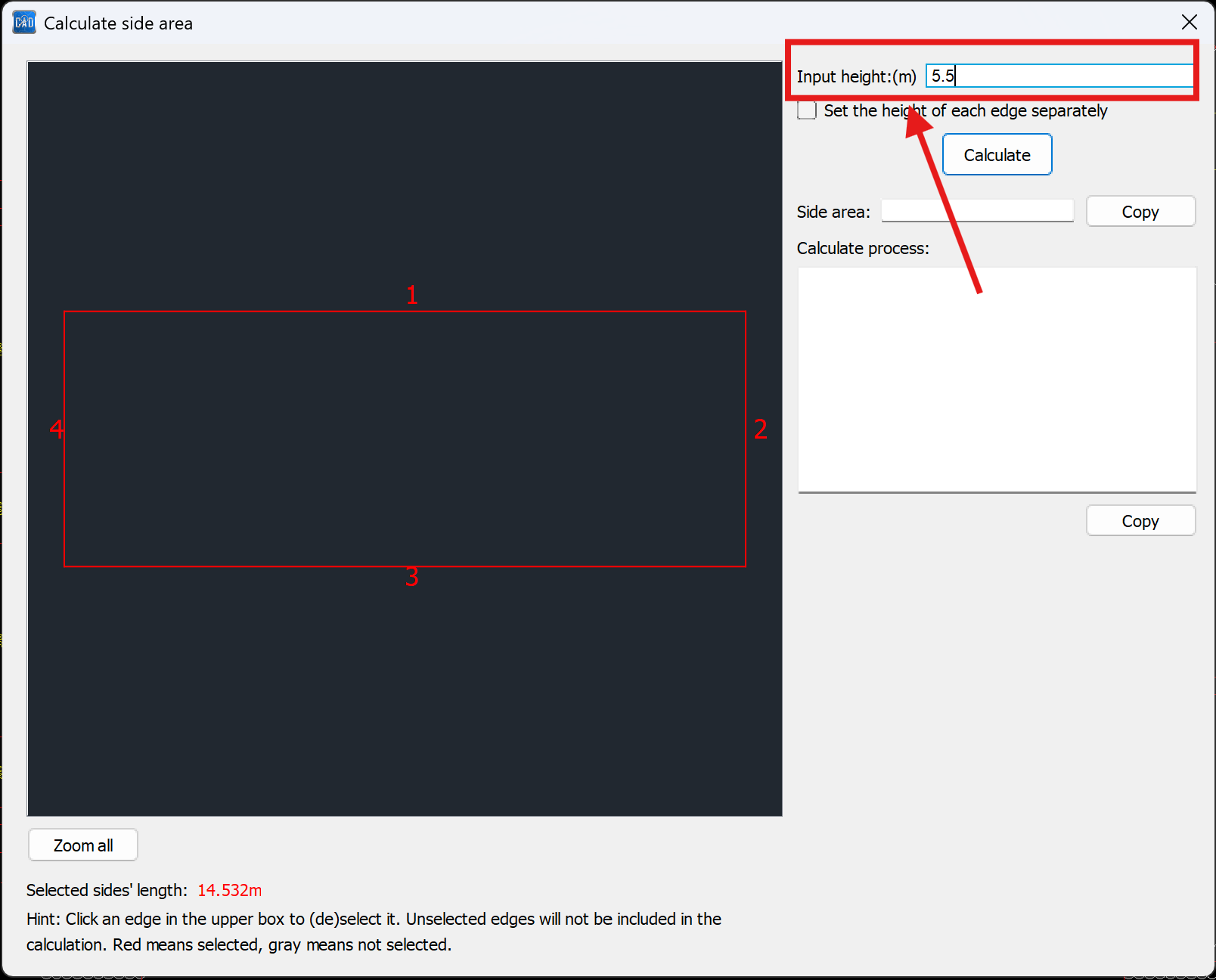
9. You can set different heights for each edge individually if required.
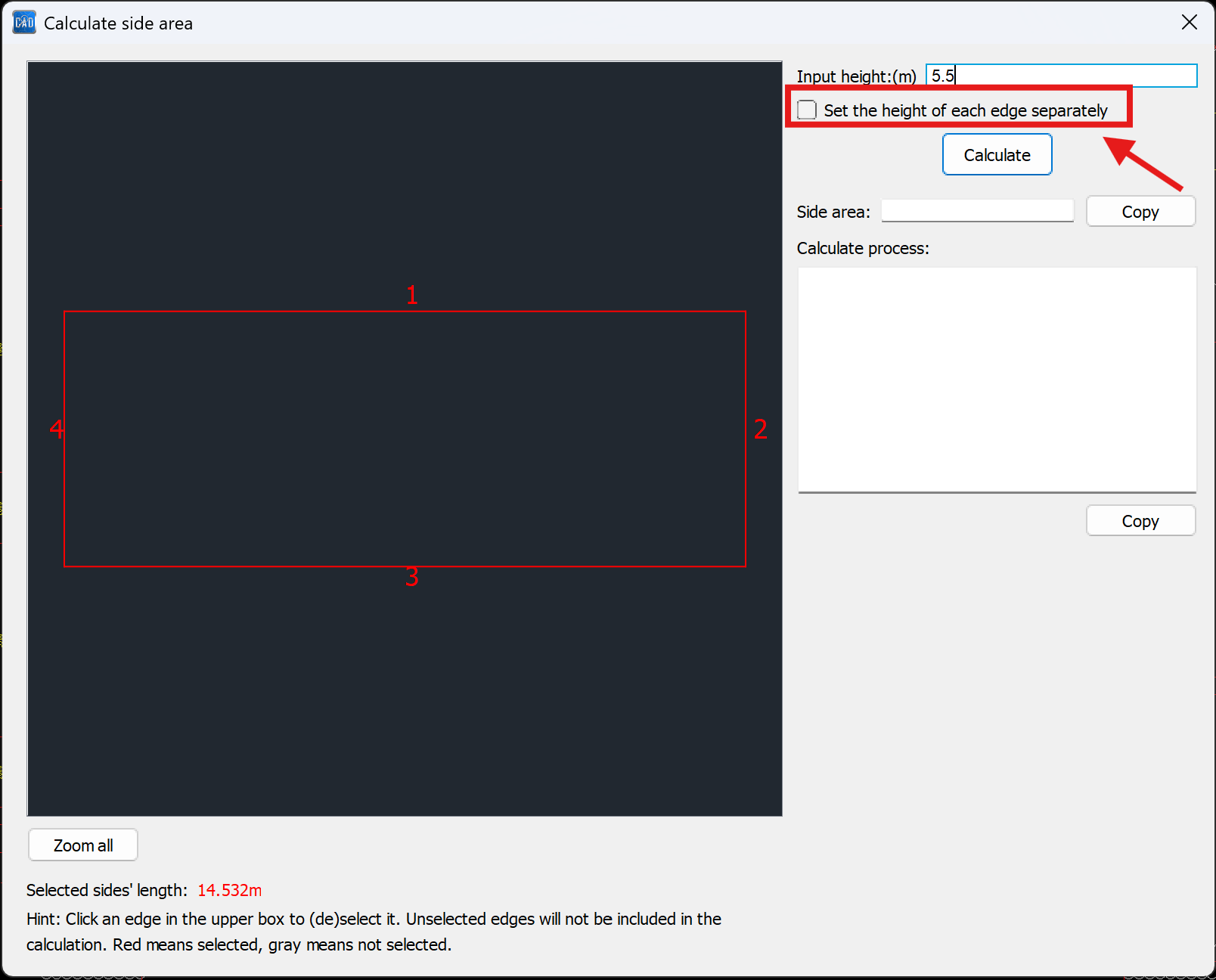
10. You can also deselect edges to exclude them from the calculation.
11. The results can be copied and pasted into Excel or other applications for further use.