How to quickly extract multiple drawing titles and drawing numbers from a pdf into a list?
Are you a document controller or part of a consulting firm struggling to create a list of drawing titles and numbers? Manually typing each drawing title and number page by page can be frustrating and time-consuming.
Planform offers a smart OCR solution that allows users to automatically extract and compile a list of drawing numbers and titles from PDF files efficiently.
This process saves time, reduces manual errors, and streamlines document control workflows.
Step-by-Step Guide:
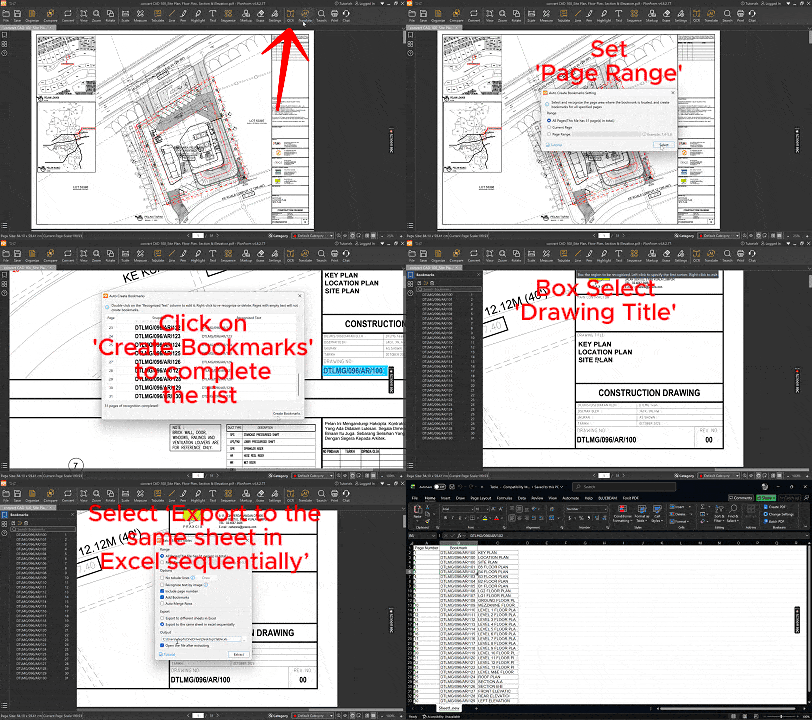
1. Launch the PDF drawing using Planform.
2. Navigate the cursor and click on the ‘OCR’ feature on the toolbar.
3. Select ‘Auto Create Bookmarks’ from the dropdown menu.
4. Choose either ‘All Pages’ or set a specific page range for the PDF file.
5. Click ‘Select’ and box-select the drawing number area to create bookmarks according to the drawing numbers.
6. Ensure all bookmarks created are correct. Users are allowed to edit, delete, or re-recognize bookmarks as needed.
7. Click ‘Create Bookmarks’ to finalize the list of bookmarks.
8. Again, navigate the cursor and click on the ‘OCR’ feature on the toolbar.
9. Select ‘Batch Extract Tables’ from the dropdown menu.
10. Box-select the drawing title area from the PDF drawing.
11. Set the page range, and tick ‘Include page number’ and ‘Add Bookmarks’ options.
12. Select ‘Export to the same sheet in Excel sequentially’ to create a complete list of drawing titles and numbers.
13. Click ‘Extract’ to generate the full list of drawing numbers and titles.
Animated Demonstration: