How do I use zoning to separate progress areas?
Zoning in drawings is a powerful feature that helps users clearly communicate ideas by dividing a plan into distinct areas. It is especially useful for:
• Presenting concepts by zone (e.g., work stages or functional areas)
• Tracking and visualizing progress across different sections of a project
• Applying unique labels or annotations to separate zones for clarity
To enhance this capability, PlanForm introduces the Polygon Highlight function. Unlike traditional tools that restrict users to rectangular or square selections, this feature allows flexible demarcation of irregular shapes. With polygon highlights, users can:
• Outline complex or non-standard areas directly on PDF drawings
• Accurately represent real-world zones such as curved boundaries, angled sections, or irregular workspaces
• Improve communication by visually emphasizing specific regions with tailored labels and highlights
This makes zoning not only more precise but also more intuitive, ensuring that project teams can present ideas and progress in a way that mirrors the actual construction environment.
Step-by-Step Guide: Using Zoning with Polygon Highlight
1. Launch the PDF drawing in PlanForm v4.8.1.76.
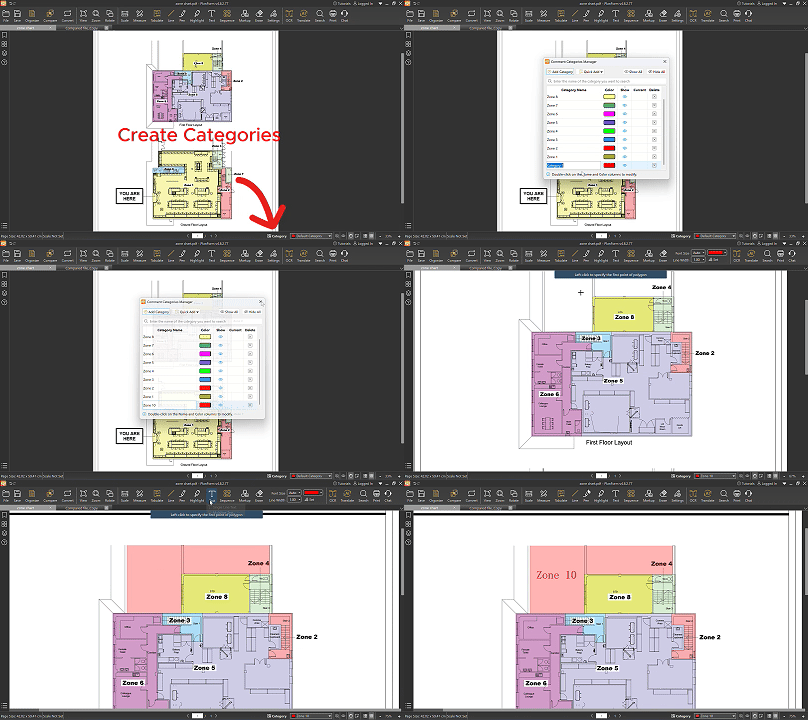
2. Click the 'Category' icon located at the bottom-right corner of the window. The Comment Categories Manager window will appear.
3. Add new categories and rename them appropriately (e.g., Zone 1, Zone 2, Zone 3).
4. Use the Quick Add function to:
o Import categories from a previously used PDF file, or
o Batch create multiple categories from a list.
5. Once categories are set up, close the Comment Categories Manager window.
6. To avoid repetitive adjustments later, set the appropriate Default Category before starting each demarcation. This ensures all data is correctly categorized from the start.
7. Navigate to the toolbar and click the ‘Highlight’ feature.
8. Select ‘Highlight Polygon’ from the drop-down menu.
9. Demarcate the zone on the drawing according to your preference. Right click to confirm marking.
10. Insert text and label the zone.
Animated Demonstration: