Scaling and Measuring CAD Drawings in Imperial Units
Many existing buildings, infrastructure, and design standards in the U.S. and UK were created using imperial units. In regions like the U.S., clients and contractors are more familiar with imperial units. Delivering CAD drawings in metric could cause confusion or errors on-site.
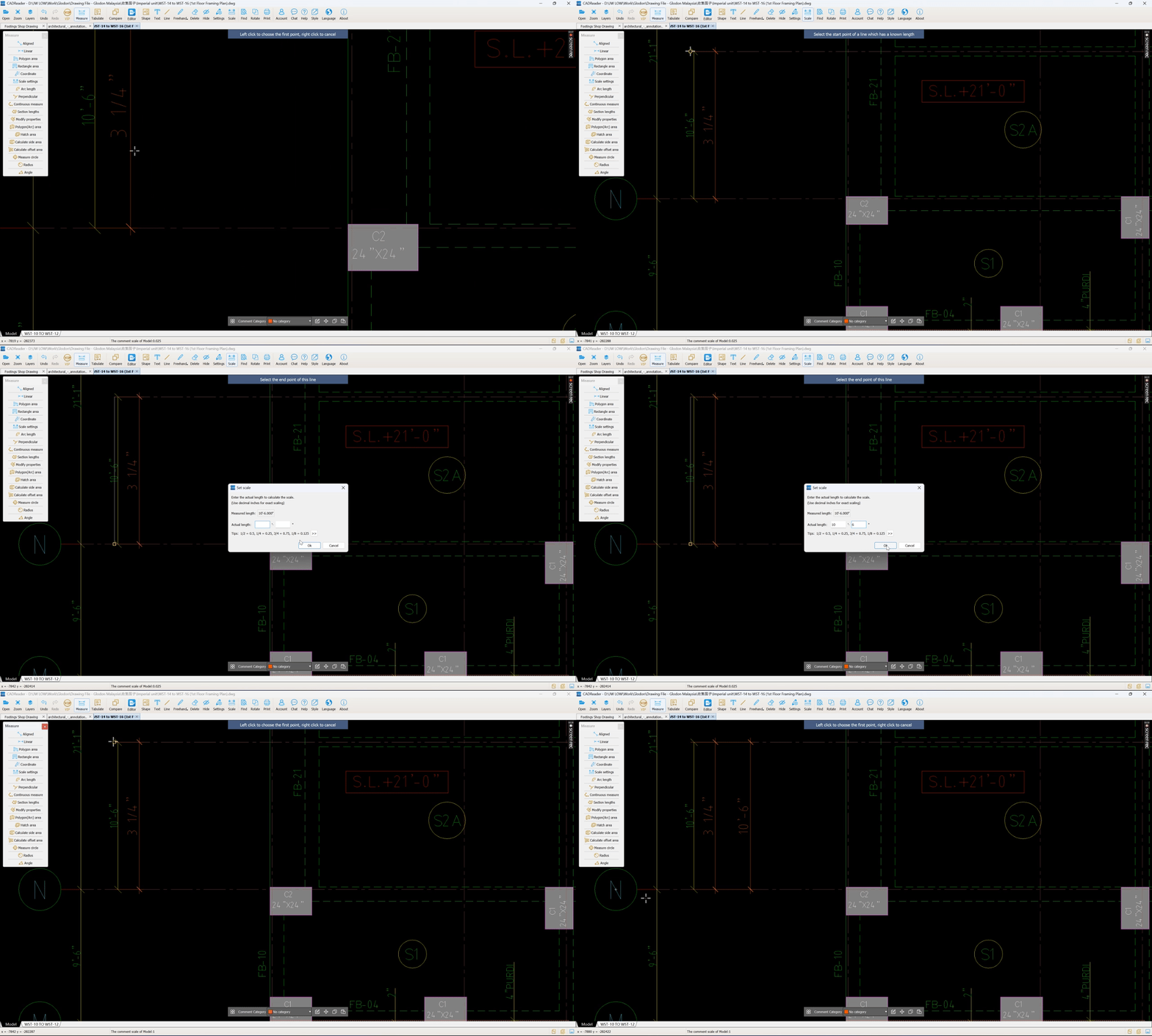
To address this, CAD Reader now supports measurement scaling in imperial units, enabling users to perform material take-offs and measurement tabulation directly from drawings created in imperial. Whether you're working with metric or imperial units, measurement scaling can now be done quickly on CAD Reader. Simply click between two known points, enter the actual length, and the scale will be applied automatically with no manual calculations required.
Step-by-step guide:
1. Download and install the latest CAD Reader version 3.7.9.26.
2. To verify your version, click About > About Us. The version number will appear at the top-right corner of the pop-up window.
3. Click the ‘Scale’ function on the toolbar.
4. Click two points on the drawing that represent a known actual dimension.
5. In the pop-up window, if the detected Original Measured Length differs from the actual dimension, enter the actual length value (in feet and inches) between the selected points to define the correct scale.
6. Click ‘Ok’ to finalize the scaling.
7. All subsequent measurements including area and perimeter will follow the designated scale, with display units shown in imperial units.
8. Click Tabulate to generate a summary of all measurements (length, area, and perimeter) in imperial units.
Set Scale Animated Demonstration: