How to Batch Export CAD Drawings to PDF?
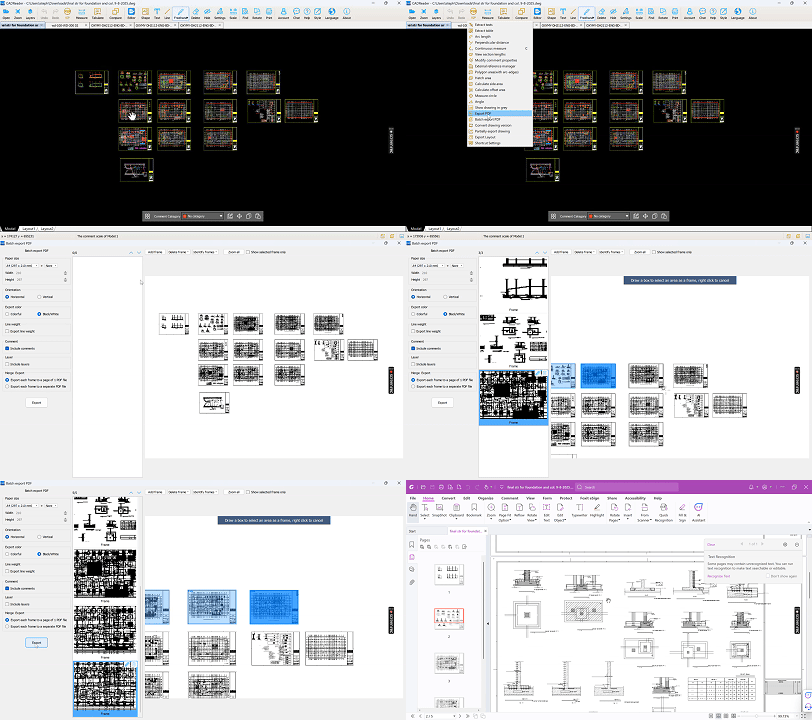
Exporting multiple CAD sheets one by one is a tedious, repetitive process that eats up valuable time. Fortunately, CAD Reader provides a streamlined "Batch Export PDF" tool that allows you to convert all your drawings into PDF format simultaneously with just a few clicks
If this option is not available, visit the official CAD Reader website to download the latest version. You do not need to uninstall the existing program, the new installer will automatically update and replace the old version
Step-by-Step Guide:
1. Open Your Project
Launch CAD Reader and open the CAD file containing the drawings you want to export.
2. Access VIP Tools
On the top toolbar, click the ‘VIP’ function icon.
3. Select Batch Export
From the drop-down menu, choose ‘Batch Export PDF’.

4. Automatic Detection
The software scans your drawing to identify sheet boundaries and frames.
5. Choose Scan Area
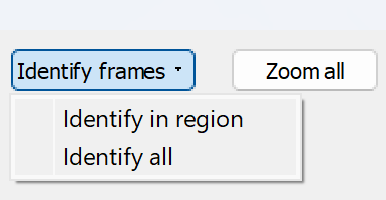
Click on ‘Identify frames’ to select:
a. Identify in region: Manually drag a box around a region.
b. Identify all: Allow the software to scan the entire workspace.
6. Manual Frame Adjustment
If a layout is not detected or cannot be identified, click on 'Add Frame' and manually drag a box around the area to select the sheets.

7. Refine Selection
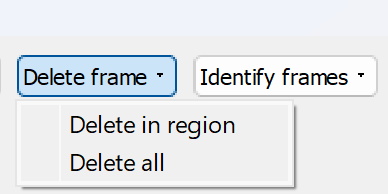
Use ‘Delete Frame’ to remove unwanted areas so they aren’t included in the final PDF.
8. Preview Sheets
Check the Preview Panel to confirm all sheets appear correctly.
9. Rename Sheets
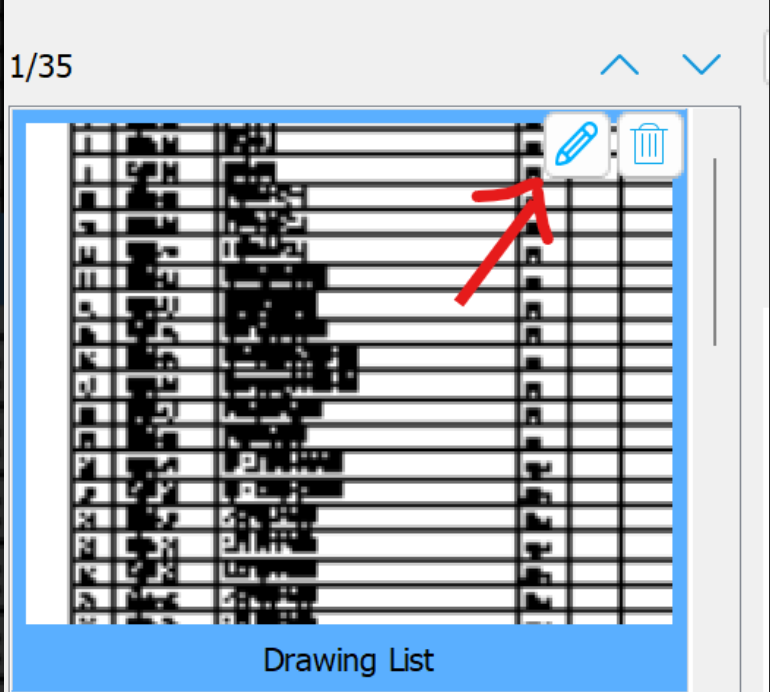
Verify that each sheet name is correct. To edit, hover your mouse over the sheet in the preview panel and click 'Modify Frame Name'.
10. Configure Print Settings
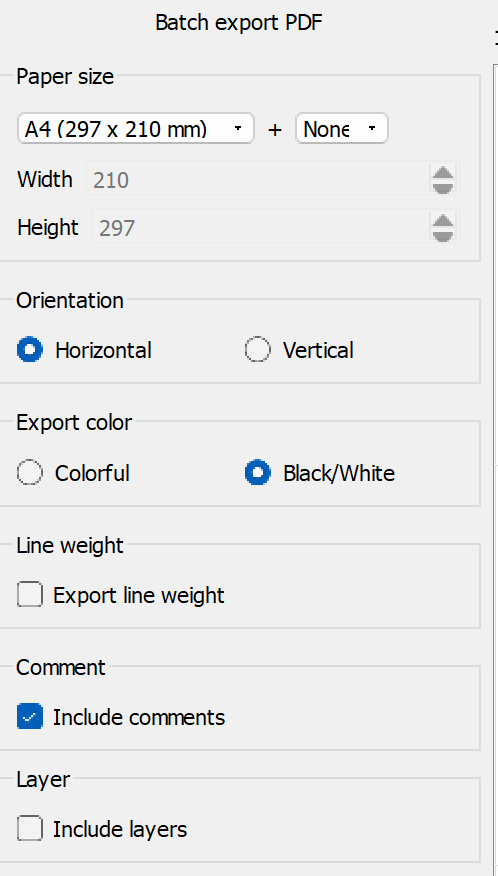
Adjust paper size, orientation, color settings, line weights, and layer/comment inclusion.
11. Choose Output Format
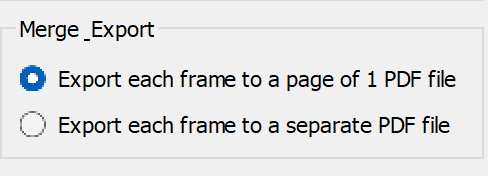
Decide whether to export as a single PDF file or as separate PDF files.
12. Finalize Export
Click 'Export'. Your drawings will be processed and saved within seconds

Animated demonstration:
Batch Export With Auto-Identify Frames and Boundaries in CAD Drawings
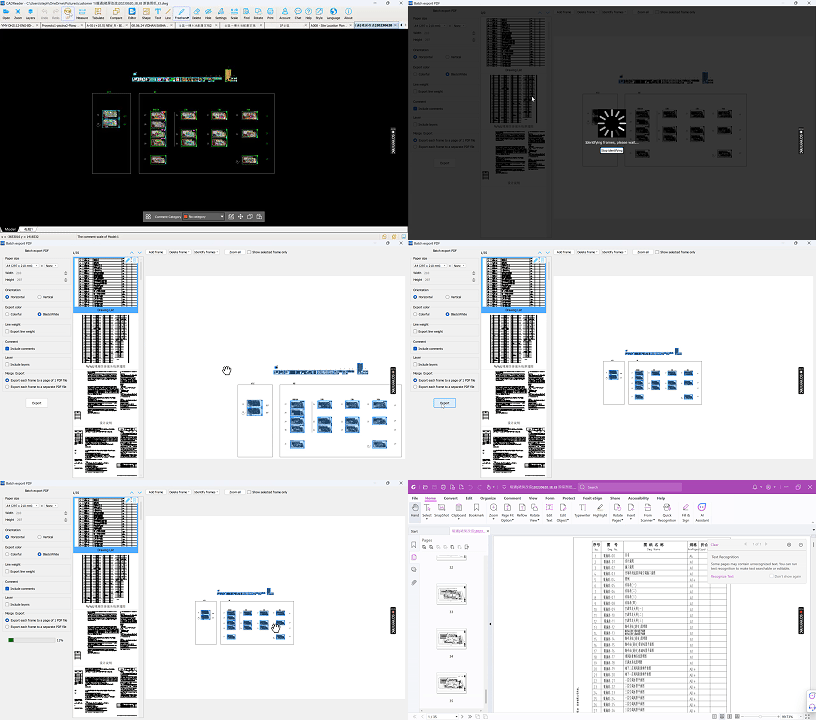
Batch Export Without Auto-Identify Frames and Boundaries in CAD Drawings