How to Generate and Summarize All Measurement Legends in Planform?
Automatically summarizing all measurement data and markups into a legend within the construction drawing offers significant value for quantity surveyors and contract department users. This feature enables:
• Efficient claim validation: It consolidates all contractor-submitted measurements based on progress claims, allowing for quick verification of completed work.
• Instant progress overview: The legend provides a clear snapshot of measurement quantities, helping project leads assess progress at a glance.
• Error reduction: By eliminating the need for manual calculations, it minimizes the risk of human error in quantity tallying.
• Time-saving workflows: Users can instantly sum up claims and measurements without cross-referencing multiple sources or manually aggregating figures.
This functionality streamlines post-markup workflows and ensures that measurement data is transparently and accurately reflected in the drawing legend, supporting faster decision-making and smoother contract administration
Step-by-Step Guide: Generating a Measurement Legend in Planform v4.8.0.75
1. Open the Drawing
Launch the desired PDF drawing in Planform v4.8.0.75.
2. Access Category Manager
Click the ‘Category’ icon located at the bottom-right corner of the window.
3. Open Comment Categories Manager
The Comment Categories Manager window will appear.
4. Create and Rename Categories
Add new categories and rename them appropriately (e.g., Door Type 1, Door Type 2, Window 600x1200, Window 600x2100, Living Room Area, Kitchen, Bedroom, etc.).
5. Use Quick Add (Optional)
You can also use the ‘Quick Add’ function to:
- Import categories from a previously used PDF file, or
- Batch create multiple categories from a list.
6. Close the Category Manager
Once categories are set up, close the Comment Categories Manager window.
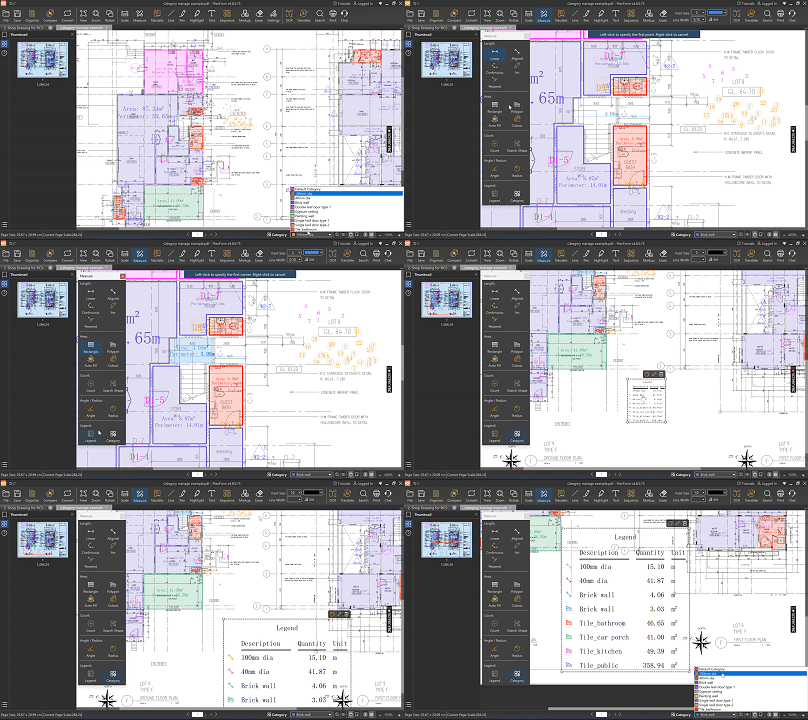
7. Set the Drawing Scale
Before taking any measurements, use the ‘Scale’ tool on the toolbar to calibrate the drawing accurately.
8. Assign the Correct Category Before Measuring
To avoid repetitive adjustments later, always set the appropriate Default Category before starting each measurement. This ensures all data is correctly categorized from the start.
9. Automatic Measurement Tabulation
As you measure, Planform will automatically capture and tabulate all measurement data based on the assigned categories.
10. Generate the Measurement Legend
Click the ‘Measure’ tool on the toolbar, then select the ‘Legend’ feature to generate a summarized legend of all measurement data.
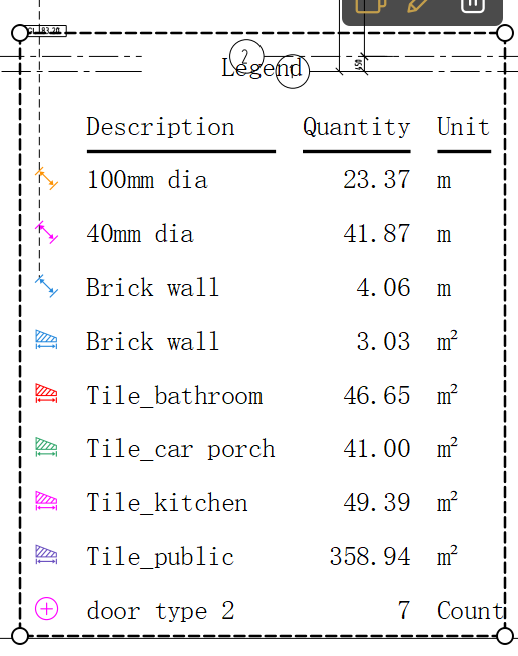
11. Adjust Legend Appearance
Click on the legend markup, then use the toolbar to adjust the font size as needed to resize the legend table.
12. Live Updates
The legend table will update in real time to reflect the latest measurements added to the PDF drawing
Animated Demonstration: